
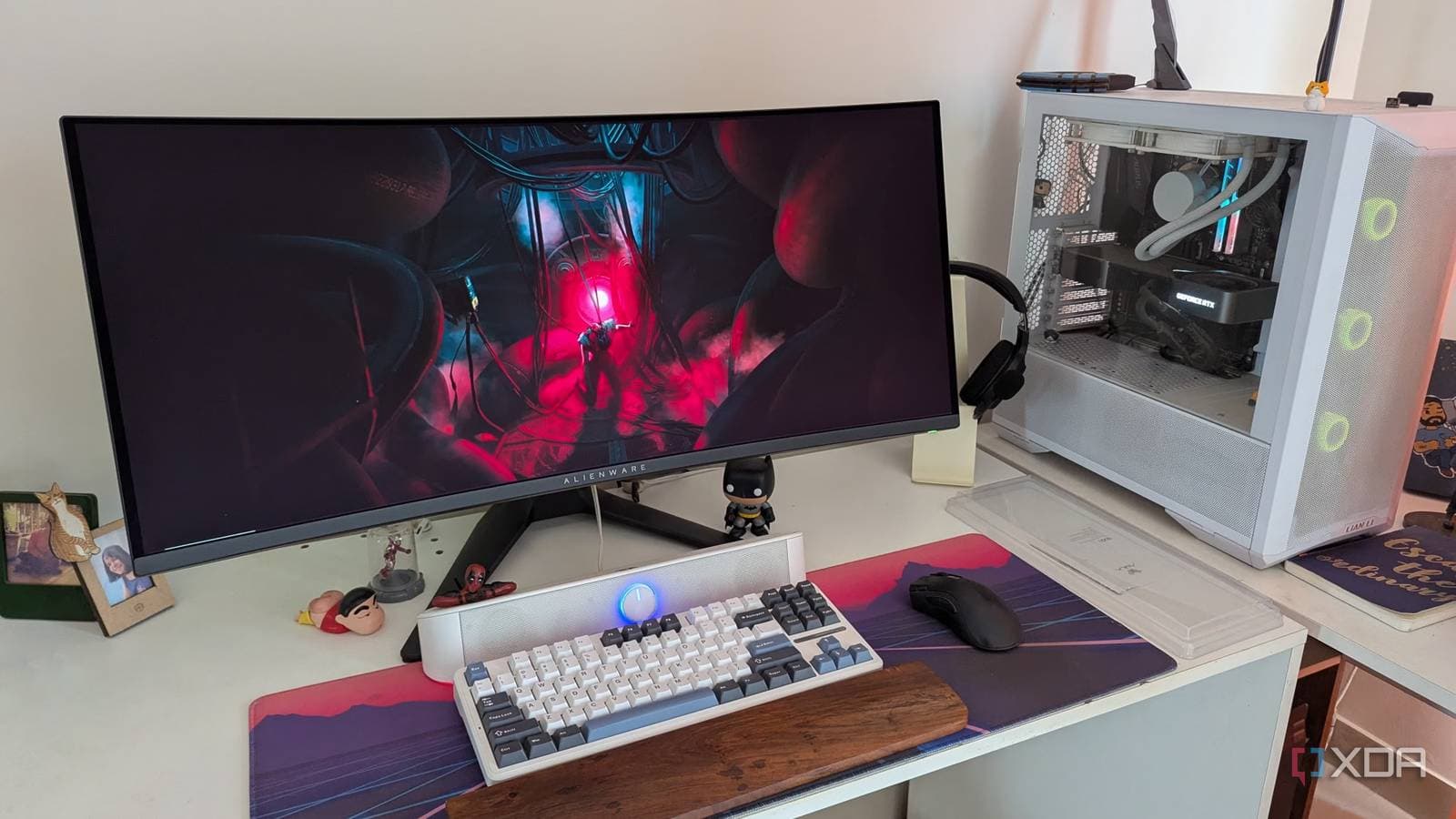
Your monitor’s built-in USB hub can replace most functions of a $150 docking station, and you might be overlooking it. XDA Developers highlights that many PC users buy a dock to solve a problem their monitor already addresses, often leading to more cables, extra costs, and clutter on their desks.
Wait, My Monitor Has a USB Hub?
Most monitors sold within the last five years feature a USB hub on the back or side panel. Essentially, a USB hub acts as a splitter, allowing you to connect multiple devices to one port. By connecting the monitor to your PC with a single cable, all devices plugged into the monitor—like your keyboard, mouse, webcam, or external hard drive—automatically appear on your computer.
This single cable is typically USB-C, a small oval-shaped connector that transmits both video and data simultaneously. Some monitors use DisplayPort for video along with a separate USB cable for the hub, but the result remains the same: just one or two cables from your monitor to your laptop, and everything works seamlessly.
So What Does a Docking Station Actually Do Differently?
A docking station, which is a small box that connects your laptop to several peripherals, does offer some features a monitor hub can’t provide. High-end docks can charge your laptop at 100 watts or more, include Ethernet ports for wired internet, and support multiple external monitors simultaneously.
However, many buyers make a mistake by purchasing a dock for features they don’t actually need. If you use just one monitor, occasionally charge your laptop, and mainly connect a keyboard, mouse, and perhaps a USB drive, your monitor’s built-in hub can handle all those tasks.
Think of it this way: buying a full toolbox when all you need is a hammer. The dock is the toolbox, while your monitor hub is the hammer. If hammering is all you do, then the toolbox just adds unnecessary clutter.
Where the Monitor Hub Actually Wins
Beyond saving money, the monitor hub excels in cable management. Since the hub resides within the monitor, the cables connecting your devices stay hidden behind the screen. This setup results in a cleaner workspace with fewer visible cables.
Another advantage is reliability. A standalone dock introduces one more device that could fail, run out of power, or require a driver update. In contrast, your monitor’s hub shares power and firmware with the monitor itself, reducing the number of devices you need to troubleshoot.
Modern monitors with USB-C connections can also charge your laptop, typically providing between 65 and 90 watts. That effectively eliminates one of the primary reasons people buy separate docks.
When You Actually Do Need a Dock
There are specific scenarios where a dock is necessary. For instance, video editors or developers who run two or three external monitors require the extra bandwidth a dock provides. If you need Gigabit Ethernet and your monitor lacks an Ethernet port, you’ll need to find another solution. And if your laptop only charges at full speed with a proprietary connector, a dock with that specific charger will be essential.
These cases cater to specific professional needs. For most people working from home or at a desk setup with a single monitor, those situations don’t apply.
| Monitor Hub vs. Docking Station: Quick Comparison | ||
|---|---|---|
| Feature | Monitor USB Hub | Docking Station |
| Extra cost | $0 (built in) | $80 to $300+ |
| USB ports for peripherals | Yes (typically 2 to 4) | Yes (typically 4 to 8) |
| Laptop charging | Up to 90W via USB-C | Up to 140W on premium models |
| Wired Ethernet | Rarely included | Common on mid-range and up |
| Multi-monitor support | No | Yes |
| Cables required | 1 to 2 | 2 to 4 |
| Desk footprint | None (inside monitor) | Additional box on desk |
What This Means for You
Before buying a docking station for your home or office setup with one monitor, take a moment to check the back of your monitor. Look for USB-A ports (the standard rectangular ones) or a USB-C port marked with a hub or data icon. If you find them, connect your keyboard and mouse to the monitor instead of your laptop. Plug the monitor into your laptop with a single USB-C cable, and see if everything works. For most people, it will.
If you already have a dock and a monitor with a hub, you might be able to unplug the dock altogether and free up some desk space. The money you save or have already spent on a dock could go toward a monitor upgrade that offers more ports, faster charging, and an improved screen.
Community Reactions
“I’ve been telling people this for years. My LG monitor has 3 USB-A ports and charges my laptop at 65W. I returned a $120 dock after realizing my monitor already did everything I needed.”
u/desksetup_nerd on Reddit
“The dock industry thrives on people not reading the specs of what they already own. Great point about the single cable setup — that alone is worth more than any dock to me.”
YouTube comment on a monitor review by Linus Tech Tips
What To Watch
- Monitor specs to look for now: When buying a new monitor, check for USB-C with Power Delivery (PD) of 65W or higher. This feature combines charging and data transfer into one cable.
- USB4 monitors coming: A new wave of monitors using USB4 (the latest USB-C standard with speeds up to 40Gbps) is expected to arrive through late 2025 into 2026. These will support even more demanding setups, including dual 4K monitors through a single cable, further narrowing the gap between monitor hubs and docks.
- Dock market response: Keep an eye on dock manufacturers as they compete by adding features that monitors can’t match, like SD card readers, audio jacks, and KVM switches (devices that allow one keyboard and mouse to control multiple computers). These features will be the real differentiators as monitor hubs evolve.
Sources: XDA Developers: Your monitor’s USB hub does more than a docking station

Maya Torres
Maya Torres is the Consumer Tech Editor at Explosion.com with 7 years covering product launches for major technology publications. She has reviewed over 300 devices across smartphones, laptops, wearables, and smart home products. Maya specializes in translating spec sheets into real-world buying advice and attends CES, MWC, and Apple keynotes as press. Her reviews focus on helping readers decide what to buy, not just what specs look good on paper.