Captions are more than just a word-for-word transcript of the dialogue. They help to focus attention, to clarify dialogue, and to enhance visual communication. Their styling also influences pacing, hierarchy, readability, and brand identity. Pippit offers an AI-powered platform for creating and editing video content seamlessly. It has editing capabilities that allow creators to fine-tune the captions post-generation. Knowing what captions to use helps create videos that can clearly convey their message on various screens and platforms.
Why Caption Styling Changes the Viewing Experience
Captions aid the viewer in following the dialogue, instructions, product information, and key claims. A good caption will be legible on a phone, tablet, and computer screen. If there is not enough contrast between the text and background, background motion can make it harder to read. Short videos require rapid understanding, as the viewers are only able to read a small amount. Hierarchy can be created using typography between primary caption and supporting information. Bigger text can indicate significant information; smaller text can highlight secondary information. But decorative effects must not outweigh the message. Too many graphics, fonts, or layout issues can slow comprehension. Pippit allows creators to edit the captions that are generated without compromising the overall visual structure of the video. Good styling thus entails not only good looks but also ease of use, timing, and clear messaging.
Start With Caption Content Before Styling
The key to caption design is to start with the correct content, not the design. Pippit's AI video generator can generate video content and captions. However, all the captions created should be carefully read before styling. Review spelling, punctuation, timing, names, numbers, and technical terminology. Match captions to narration to find missing words or incorrect words. Cut out any repetition that isn't needed to achieve the purpose of the video. Extended verbal messages should be shortened into visual messages that viewers can grasp at a glance. Be very specific with any key claims; captions can shape how audiences interpret information. Before abbreviating or simplifying language, think about who will be reading the text. The use of clear wording also facilitates later styling decisions, as each caption has a defined communication value.

Refine Caption Design and Audio Integration
A good caption design is one that is easy to read, visually appealing, and harmonizes with the video's composition. Once you've created your video in Pippit, you can resize, color, align, add spacing, and line breaks to ensure your captions are clear on all screen sizes. Be cautious of using contrast if backgrounds are busy, and use it only to emphasize words that are meaningful. SeedAudio 2.0 can create dialogue, ambience, sound effects, and music with richer sounds and allows for timestamp placement and separate audio tracks. This will allow you to sync captions with the spoken content and sound cues to result in a more unified viewing experience rather than an isolated visual component.

Steps to Understand Caption Styling Options With Pippit's AI Video Generator
Step 1: Create a caption-ready video
- Sign up for Pippit with your Google, TikTok, or Facebook account.
- Open "More" from the left menu and select "Video generator".
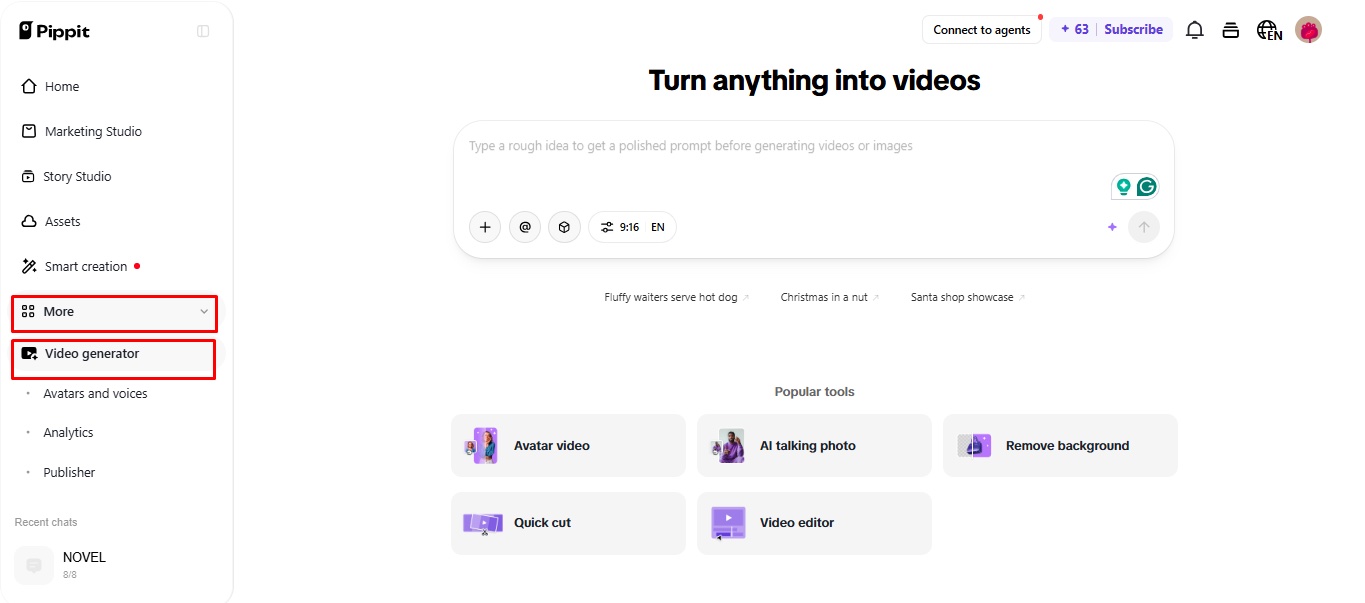
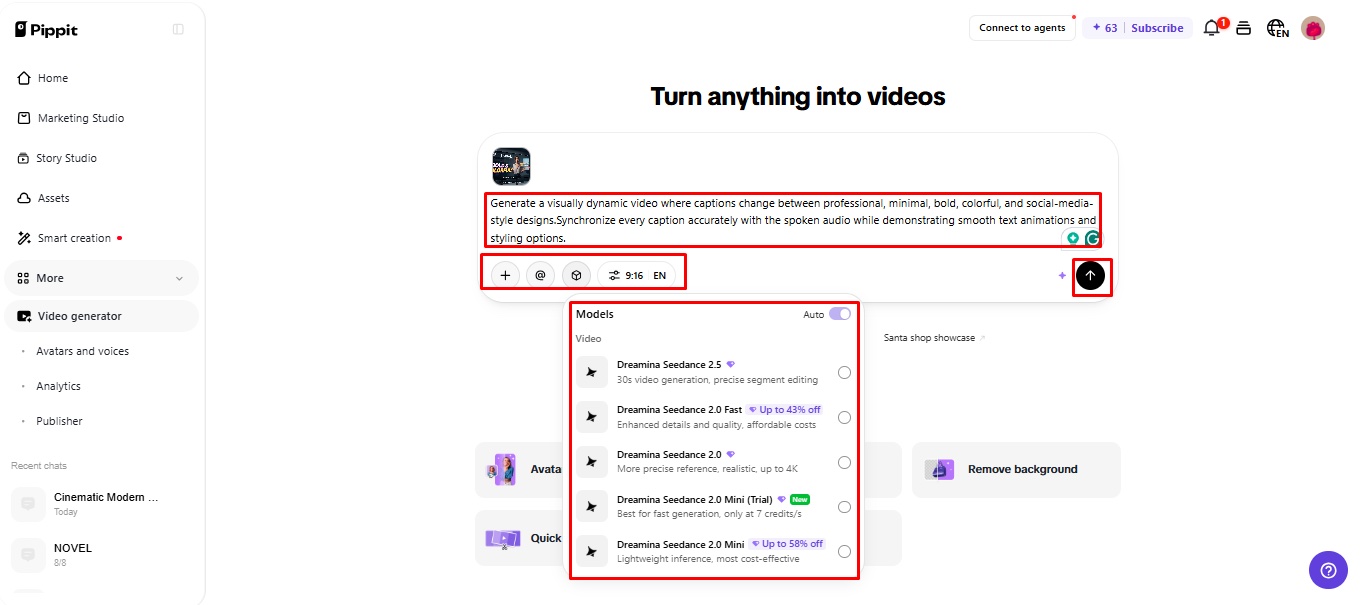
- Choose an AI model, such as Dreamina Seedance 1.0, Dreamina Seedance 2.0, Dreamina Seedance 2.0 Fast, Dreamina Seedance 2.0 Mini, or Dreamina Seedance 2.5.
- Write a prompt describing the video style, tone, audience, and caption presentation.
- You can also select video length, language, subtitles, and aspect ratio.
- Click "+" to upload reference images or videos from your device, phone, Dropbox, or a link. You can also choose available assets.
- Click "Generate" to create the video.
Step 2: Generate captions and visuals
- After clicking "Generate," Pippit creates the video from your prompt and media.
- The AI manages transitions, pacing, captions, avatars, voice, lyrics, and visual enhancements.
- Review the draft and check how the captions fit the video.
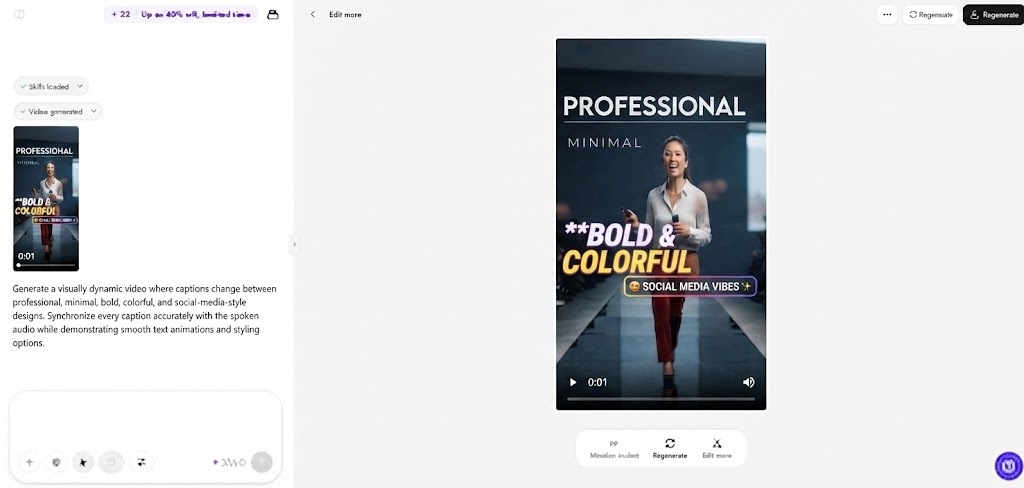
Step 3: Style your captions
- Use "Download" at the top right to save the video. Click "Regenerate" for another version or "Edit more" below the video for detailed editing.
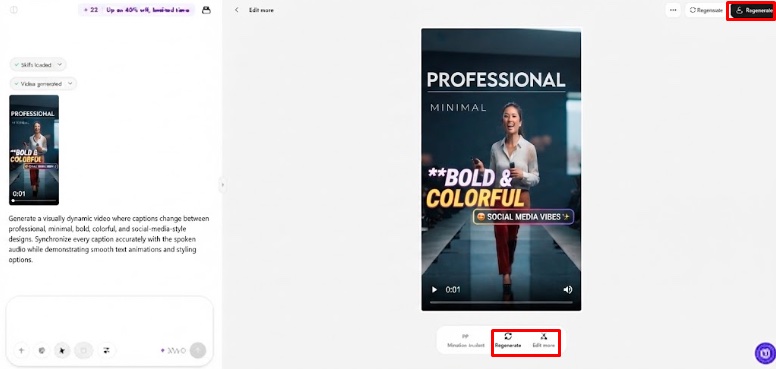
- Edit captions manually and adjust text size, color, alignment, filters, and effects.
- You can also add music, remove backgrounds, and refine the visuals.
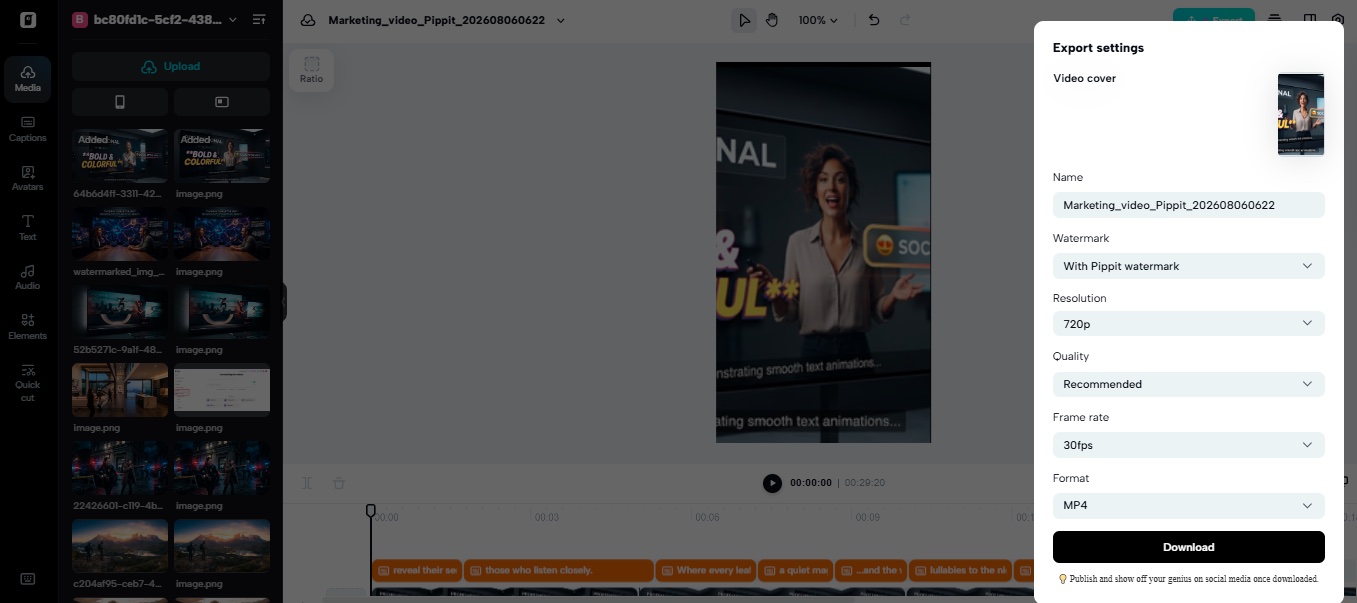
- Click "Export" when finished.
- Select "Publish" for TikTok, Instagram, or Facebook, or choose "Download" to set format, resolution, frame rate, and quality.
6 Caption Styling Approaches to Understand
The caption treatment varies, depending on the purpose and complexity of the video. Take into account the following six ways to fine-tune captions in Pippit:
- Minimal Captioning: Use plain and simple typography for information-heavy videos. Focus on high contrast, ease of reading, and uncluttered placement.
- Keyword Emphasis: Highlight key words in text relative to other words. Use highlighting sparingly to be sure highlighted words have true meaning.
- Dynamic Timing: Caption changes are closely synchronised with spoken phrases and scene changes. Ensure captions are displayed for a sufficient period of time to read easily.
- Brand Typography: Consistently present text in related marketing videos. Maintain familiar typography while still keeping branding non-obtrusive for readability.
- High-Contrast Layout: Easily distinguish captions from complex or variable backgrounds. Spacing and positioning – use carefully in each scene.
- Hierarchical Text: Use visual and textual hierarchy to separate headlines, supporting captions, and secondary information. Provide viewers with an immediate clue to key information.
Position Captions Around Key Visual Elements
The placement of captions should complement the scene and not be distracting from elements of the scene. Do not block the face, product, demonstration, control, or graphics that the audience must see to receive the message. Think about what the main point of each scene is and move the caption accordingly rather than trying to make all captions fit in one place. Seeworld is an extension of the approach of having a 3D world-model, which focuses on relationships between objects, environments, and viewpoints for spatially complex scenes. This is a key captioning guideline: elements of the shot should complement each other. Check the captions on smaller screens for preview prior to export to identify overlaps and readability problems.
Match Caption Style With Video Purpose
The styling of the caption should be appropriate to the purpose, audience, speed, and platform of the video: calm typography and a clear segregation of concepts for educational videos. Product benefits can be highlighted in promotional videos without sacrificing readable, concise text. The short caption segments are usually required for social content due to the quick pace of scenes and transitions. Timing can help in storytelling videos to help propel the emotion without becoming too heavy on the viewer. The content in presentations may need to be more hierarchical, as in: headings, spoken information, supporting detail. Translated phrases may take up varying screen space in the case of multilingual videos, so they need extra attention. For longer translations, size and line breaks might need to be adjusted. A consistent caption system also helps to reinforce content series through visual patterns. Pippit complements this extended workflow, generating and adding caption and visual control features.
Conclusion
Captions that are readable, accessible, timed, hierarchical, and visually consistent are effective. The text should aid in communication without overshadowing critical visual elements. The right words are the basis for all great styling choices. Then thoughtfully sized, contrasted, spaced, and positioned for better viewing. Pippit can help you create captions, while you manually tweak the presentation. The best captions become an integral component of video communication. They should be used in each scene and feel like they were purposefully added and helpful.

Nick Guli
Nick Guli is the founder and editor-in-chief of Explosion.com, which he launched in February 2012. With over a decade of experience in digital publishing, Nick oversees editorial direction across entertainment, gaming, technology, and lifestyle content. He is an avid gamer and movie enthusiast who brings a critical eye to coverage of industry trends, game reviews, and entertainment news.