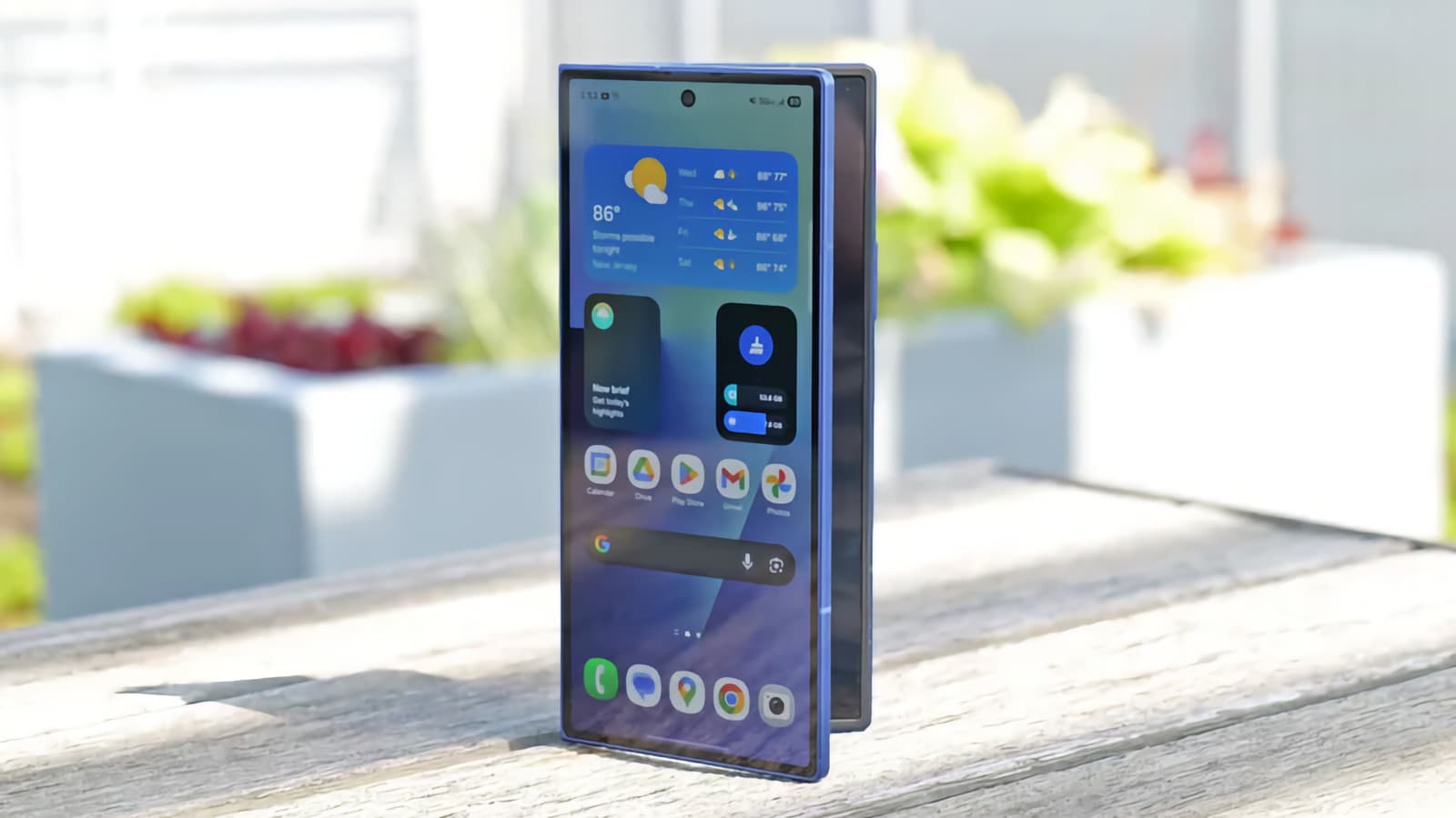
Your Samsung Galaxy phone might feel sluggish, not due to outdated hardware, but because of the software on it. A few simple settings changes can really boost its performance without needing to wipe anything or get a new device.
A detailed look from XDA Developers highlights specific features in Samsung One UI (Samsung’s custom software layer on Android) that can quietly drain performance, along with what you can do about each one. If your Galaxy has been feeling bogged down lately, it’s worth diving into.
Why Samsung Phones Feel Bloated
Samsung ships its Galaxy phones with One UI layered over Android, leading to two software systems running simultaneously. It’s like having two operating systems on one computer—handy sometimes, but heavy on resources. Plus, Samsung pre-installs several apps and background services that run even if you’re not using them.
The outcome? Your RAM (the short-term memory that runs apps) fills up quickly. Animations can lag, and routine tasks like launching the camera or switching apps feel less responsive than they should on capable hardware.
The Fixes That Actually Help
Turn Off or Disable Unused Samsung Apps
Samsung includes apps like Bixby, Samsung Free, and its own browser alongside Google’s versions. Most users never use these, but they still run in the background. By heading to Settings, locating each app, and selecting “Disable” (you can’t fully delete them, but disabling stops their operation), you can free up RAM and cut down background activity.
Reduce Animation Speed
The animations in One UI—like when you open or close apps—default to 1x speed, but you can reduce them to 0.5x. To do this, unlock Developer Options (a hidden menu) by going to Settings, About Phone, then tapping “Build Number” seven times. Once you’re in Developer Options, set all three animation scale options to 0.5x. Your phone won’t actually run faster, but it’ll feel much more responsive since you’ll spend less time watching animations.
Limit Background App Activity
One UI has features called “Sleeping Apps” and “Deep Sleeping Apps” in the Battery settings. Apps in deep sleep won’t run in the background at all until you open them. Moving apps you rarely use into this category helps stop them from quietly using up RAM and battery life.
Disable Edge Panels and Always-On Display
Edge Panels (the swipe-in shortcuts on the side of the screen) and Always-On Display (showing the clock and notifications when your screen is off) are both visual features that can drain performance and battery. Turning them off in Display settings can provide a quick boost, especially for older Galaxy models.
Switch to a Simpler Home Screen Setup
Samsung’s default home screen often includes widgets and live wallpapers that refresh constantly. Replacing these with static elements or using a minimal launcher cuts down on how much your phone’s processor has to work just to display your home screen.
By The Numbers
| Data Point | Detail |
|---|---|
| Company | Samsung Electronics |
| CEO | Jong-Hee Han |
| Headquarters | Seoul, South Korea |
| Founded | 1938 |
| Stock (005930.KS) | ₩220,000 (down 13.39%) |
| Sector | Hardware |
| One UI Version (current) | One UI 7, based on Android 15 |
What This Means
You don’t need any technical skills to make these changes, and they won’t void your warranty. They take about 15-20 minutes to implement and won’t erase your data. For those with mid-range Galaxy phones like the A-series or Galaxy S models that are a couple of years old, these adjustments can lead to a noticeable improvement in speed—like faster app switching, smoother scrolling, and better battery life due to reduced background activity.
Samsung has made strides in cutting down One UI bloat in recent versions—One UI 7 is leaner than earlier versions. However, pre-installed apps and default settings still prioritize Samsung’s ecosystem features over raw performance. So, these manual tweaks remain useful even on newer devices.
If you’re considering upgrading your Galaxy because it feels slow, try these settings first. Many users find they can extend the life of their device by another year or two just by making these adjustments.
Community Reactions
“Disabling Bixby and all the Samsung duplicate apps genuinely made my S22 feel like a different phone. Should be default settings honestly.”
— u/throwaway_techguy88, Reddit r/samsung
“The animation speed trick alone is worth it. People always think their phone got faster but it’s just the animations. Still, 100% recommend.”
— YouTube comment on XDA Developers channel
What To Watch
- Samsung Galaxy Unpacked, July 2026: Samsung is set to hold its next major hardware event this month. Expect new Galaxy Z Fold and Z Flip foldable phones, plus possible One UI updates. Leaks have already revealed a wider design for the Galaxy Z Fold 8 in real-world photos. Here’s how to catch the Samsung Galaxy Unpacked event.
- One UI 8 development: Samsung usually starts rolling out its next major One UI version in the fall. It’ll be interesting to see if it tackles the background app clutter that makes these manual fixes necessary.
- Full settings guide: XDA Developers has a complete step-by-step breakdown of all the settings mentioned here, with screenshots for each Galaxy model.

Ava Mitchell
Ava Mitchell is a digital culture journalist at Explosion.com covering social media platforms, streaming services, and the creator economy. With 4 years reporting on TikTok, Instagram, YouTube, and the apps that shape daily life, Ava specializes in explaining platform policy changes and their impact on everyday users. She previously managed social media strategy for a tech startup, giving her firsthand experience with the platforms she now covers.