
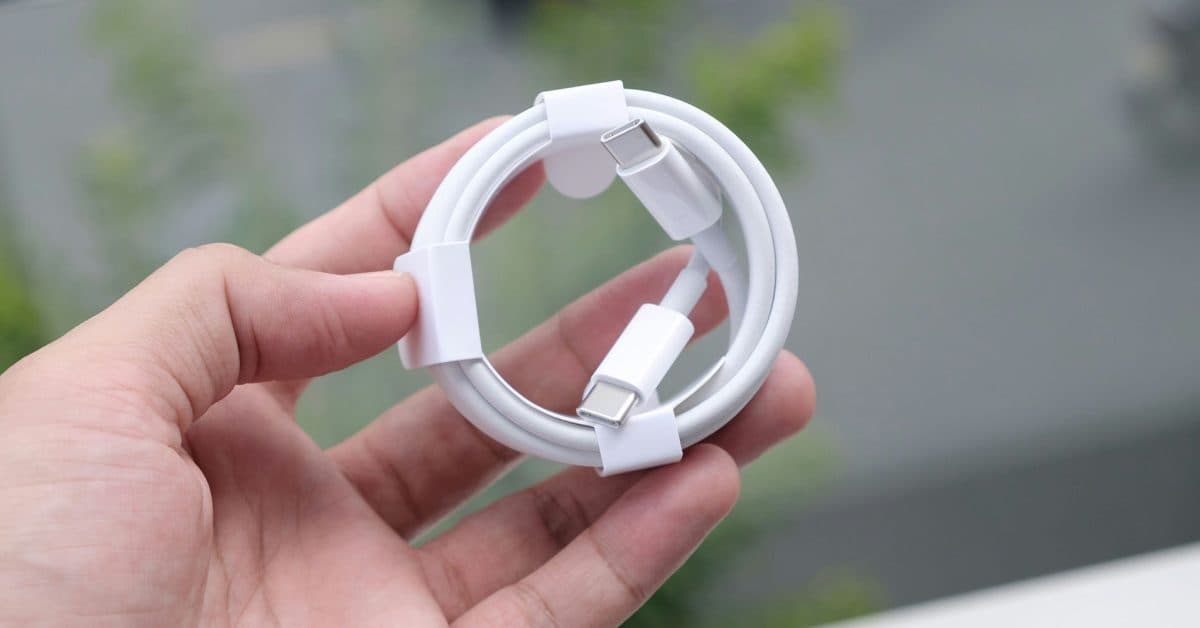
A free Mac app named WhatCable can now show you exactly what each of your USB-C cables can do. This ends the frustrating guessing game that comes with a drawer full of similar-looking cables that perform very differently.
The USB-C Confusion Problem
USB-C, that oval-shaped connector found on most laptops, phones, and accessories, has a hidden secret: all USB-C cables may look alike on the outside, but they can differ greatly in functionality. One cable might charge your laptop at a full 100W speed, while another might only provide a mere 18W. Some cables can push video to an external monitor at full 4K resolution, while others can’t carry video at all.
This issue is more significant than it sounds. If you grab the wrong cable from your bag, your MacBook could charge so slowly that it actually loses battery while you’re working. You might waste 20 minutes troubleshooting why your monitor isn’t displaying anything, only to realize that the cable is the problem.
Until now, figuring out your cables meant either buying a specialized hardware tester or trying to remember which cable came from which product box — not exactly practical.
What WhatCable Actually Does
WhatCable reads the electronic ID chip in many modern USB-C cables. This chip identifies the cable’s specs. When you plug a cable into your Mac, the app checks that chip and translates the technical data into plain English.
The app provides key information like:
- Maximum charging wattage — how quickly the cable can deliver power
- Data transfer speed — whether you’re looking at USB 2.0 speeds (which are slow), USB 3.2, or Thunderbolt 4 (the fastest standard, moving a full-length movie in seconds)
- Video output capability — whether the cable can carry a display signal
- Cable certification status — whether it meets official USB or Thunderbolt standards
Think of it as a nutrition label for cables. Instead of calories and carbs, you get watts and gigabits per second.
According to 9to5Mac, the app is free and available right now. Sean Hollister from The Verge previously recommended an $8 hardware cable tester that’s since been discontinued. He called WhatCable a solid software alternative and noted it fills a gap that’s been open for nearly three years.
The Catch: Apple Silicon Only
There’s one major limitation: WhatCable only works on Macs with Apple Silicon chips — specifically M1, M2, M3, or M4 series processors. Older Intel-based Macs can’t use the app because the cable identification feature depends on hardware capabilities unique to Apple’s chips.
If you bought your Mac after late 2020, it likely has an Apple Silicon processor. If you’re unsure, click the Apple menu in the top-left corner, select “About This Mac,” and check for the chip name.
According to The Verge, the app also can’t read every cable. Some cheaper or older cables simply lack the ID chip entirely, so WhatCable will tell you the cable is unidentified instead of guessing.
| WhatCable — By The Numbers | |
|---|---|
| Price | Free |
| Platform | macOS (Apple Silicon only) |
| Compatible chips | M1, M2, M3, M4 series |
| Max detectable charging speed | Up to 240W (USB PD 3.1) |
| Max detectable data speed | Thunderbolt 4 / USB4 (40Gbps) |
| Hardware tester alternative cost | ~$8–$30 (most discontinued) |
What This Means
This app offers a quick solution to a problem that’s been bothering many for years. If you own more than two USB-C cables — and most users with a modern Mac, iPhone 15 or later, or iPad Pro do — you’ve likely faced the slow-charge mystery or the monitor that won’t connect at least once.
The practical approach is simple: take five minutes to plug each cable into your Mac and label them. A small piece of masking tape with “fast charge only” or “Thunderbolt” written on it can save you a lot of headaches later.
It’s also handy for buying used cables or those bundled with third-party accessories. Instead of relying on the packaging, you can quickly verify whether the cable actually delivers what it claims.
What People Are Saying
“Finally. I have like 8 USB-C cables and I genuinely had no idea which ones were Thunderbolt and which ones were basically just for charging. Took me 3 minutes to sort the whole drawer.”
“The fact that this has to exist as an app is a perfect summary of USB-C. Great connector, complete chaos in practice.”
What To Watch
- Intel Mac support: The developer hasn’t announced any plans to extend compatibility to older Intel-based Macs. Since this feature relies on Apple Silicon hardware, a workaround seems unlikely without a different approach.
- iOS and iPadOS version: iPhones and iPads with USB-C (iPhone 15 and later, recent iPad Pros and Airs) face similar cable confusion. No mobile version has been announced yet, but the demand is clearly there.
- USB cable labeling standards: The USB Implementers Forum has been advocating for better physical labeling on cables for years. Progress has been slow, but if enough users start using tools like WhatCable, it might pressure manufacturers to be more transparent at the product level.

Daniel Park
Daniel Park covers AI, cloud infrastructure, and enterprise software for Explosion.com. A former software engineer who transitioned to technology journalism 5 years ago, Daniel brings technical depth to his reporting on artificial intelligence, startup funding rounds, and the companies building the future of computing. He breaks down complex AI developments and business strategies into clear, actionable insights for readers who want to understand how technology is reshaping industries.