
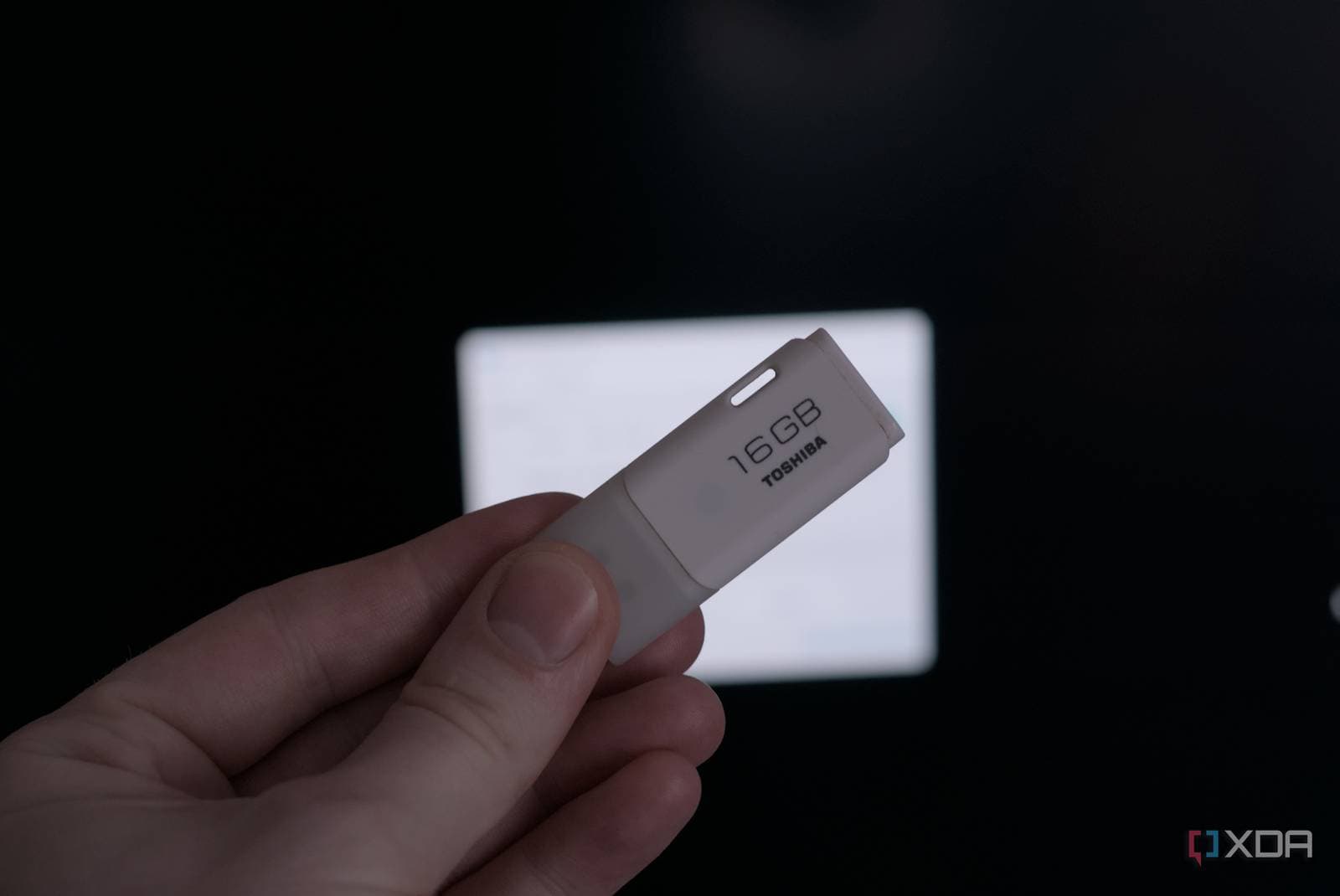
More Windows power users are moving away from traditional software installations. Instead, they’re creating a single portable tools folder that lives on a USB drive or syncs across multiple PCs. This method eliminates setup wizards, registry clutter, and the need for uninstallers.
The concept, as explained by XDA Developers, is simple. Many popular Windows utilities offer “portable” versions that run directly from a folder without affecting your system’s registry. You gather these tools in one location, and your collection travels with you.
Why People Are Doing This
If you’ve used a Windows PC for a while, you know the drill. You install a tool for a specific task, forget about it, and months later, your Programs list is cluttered with software you barely recognize. Each installation leaves behind traces like startup entries and registry keys, which can slow down your machine over time.
A portable setup avoids these issues. Since nothing is officially “installed,” nothing gets integrated into Windows. If you delete the folder, it’s as if the tools were never there. Just copy the folder to a new PC, and you’re good to go.
Think of it this way: it’s like cooking a meal in your kitchen versus bringing a packed lunch. The packed lunch leaves no mess behind.
What Goes Into a Portable Tools Folder
The XDA Developers article highlights a core set of utilities that handle most everyday PC maintenance tasks. Here’s what a solid portable toolkit usually includes:
Storage and USB Tools
Rufus is one of the most popular portable apps available. It creates bootable USB drives for installing Windows or running recovery systems, and it doesn’t require installation. You just download one file, double-click it, and it works. For checking drive health, tools like CrystalDiskInfo read S.M.A.R.T. data, which is your hard drive’s internal health log, and can flag potential problems before failure occurs.
Hardware Monitoring
HWiNFO and CPU-Z are the go-to portable tools for checking what’s inside your PC: processor temperatures, memory speeds, and GPU load. These tools are particularly useful when buying a used computer or troubleshooting an overheating laptop, as they don’t leave any traces on the machine.
File and System Utilities
7-Zip, a free compression tool, has a portable version available. Everything, a search tool that finds files on your PC almost instantly, is also portable and works noticeably faster than Windows Search. Notepad++ is a popular portable text editor for developers and writers who need more functionality than basic Notepad.
Security Scanners
Malwarebytes provides a portable scanner that doesn’t require a full installation, which is handy for checking a friend’s PC without needing to subscribe to anything on their machine.
| Tool | What It Does | File Size (approx.) |
|---|---|---|
| Rufus | Creates bootable USB drives | ~1.4 MB |
| CrystalDiskInfo | Monitors hard drive health | ~3 MB |
| HWiNFO | Tracks hardware temps and stats | ~8 MB |
| Everything | Instant file search | ~1.5 MB |
| Notepad++ | Advanced text and code editor | ~5 MB |
| 7-Zip | File compression and extraction | ~1.5 MB |
How to Actually Build One
Setting up your portable tools folder takes about 20 minutes. Start by creating a folder called something like “PortableTools” on your USB drive or in a cloud-synced folder (Dropbox, OneDrive, or Google Drive work well). Then, visit each tool’s official website and look for the “portable” or “standalone” download option—most major utilities provide one. Just drop each executable or its folder into your main folder. That’s all there is to it.
If you use a cloud service to sync the folder, your tools will automatically follow you to every PC. If you prefer a USB drive, a 16 GB drive can easily hold hundreds of portable apps with room to spare. Typically, your entire collection of commonly used tools won’t exceed 100 MB.
Here’s a handy tip: create a simple text file inside the folder that lists what each tool does and where you downloaded it from. You’ll thank yourself for this in six months.
What This Means for Everyday Users
For most people, the biggest advantage is the ease of helping friends and family with their computers. Instead of installing diagnostic software on someone else’s machine, you can just plug in your USB drive, run what you need, and then unplug, leaving their system untouched.
This approach also saves time when setting up a new PC. Instead of spending hours reinstalling and configuring tools, you simply copy one folder, and you’re done. Everything is already set up just how you like it.
If you’re concerned about privacy, portable apps that store their settings in their own folder (instead of in Windows user profiles) ensure your preferences and history leave with the drive when you unplug it.
Community Reactions
“I’ve been doing this for years. Rufus and CrystalDiskInfo alone have saved me countless times. My USB drive is basically a PC repair kit at this point.”
“The Everything search app portable version genuinely changed how I use Windows. Can’t believe I used the built-in search for so long.”
What To Watch
- PortableApps.com platform is worth keeping an eye on—the site maintains a curated launcher for hundreds of portable tools and regularly adds significant new entries to its library.
- Windows 11 updates can sometimes disrupt portable apps that depend on older system libraries. If you maintain a portable folder, be sure to test your tools after major Windows feature updates, which typically happen each fall.
- Cloud sync options are expanding. Microsoft is enhancing OneDrive integration in Windows 11, making it easier for mainstream users to set up synced portable tool folders in future releases.

Daniel Park
Daniel Park covers AI, cloud infrastructure, and enterprise software for Explosion.com. A former software engineer who transitioned to technology journalism 5 years ago, Daniel brings technical depth to his reporting on artificial intelligence, startup funding rounds, and the companies building the future of computing. He breaks down complex AI developments and business strategies into clear, actionable insights for readers who want to understand how technology is reshaping industries.