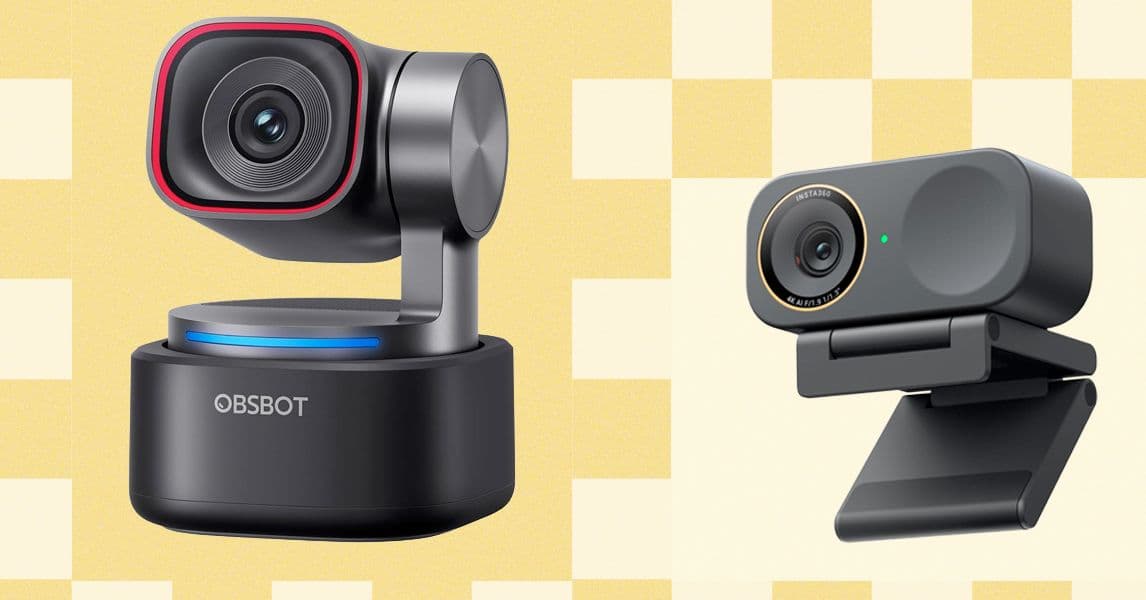
Bad lighting is the main reason you might look terrible on video calls, and a new webcam won’t solve that issue. Luke Larsen from Wired discovered this while testing lighting solutions for a challenging home office setup, where renovations weren’t an option.
If you’ve joined a Zoom or Teams meeting and felt like a shadowy figure backlit by a window, or appeared as a ghostly blur under harsh overhead lights, you’re not alone. The good news is that fixing this problem is often cheaper and simpler than purchasing a new camera.
Why Your Camera Isn’t the Problem
Many people point fingers at their webcam when video quality isn’t great. However, even budget cameras depend heavily on the light available. The light sensors in webcams, which detect brightness and color, struggle to create a clear image in uneven, dim, or poorly directed lighting.
Think of it this way: trying to read a book in a dimly lit room versus a well-lit one. The book hasn’t changed, but your ability to see it clearly has. Your webcam operates under the same principle.
Common lighting mistakes in home offices include:
- Sitting with a window behind you — the camera adjusts for the bright background, leaving your face in shadow
- Relying on overhead lights — these create unflattering downward shadows on your face
- Using mixed light sources — combining warm incandescent bulbs with cool daylight can create strange color casts on skin tones
The Fixes That Actually Work
1. Face a Window (Don’t Sit In Front of One)
The simplest and cheapest fix costs nothing. Just move your desk so that a window is in front of you, not behind you. Natural light is soft and flattering. Even on cloudy days, window light evenly illuminates your face. This adjustment can greatly enhance video quality without any cost.
2. Add a Dedicated Light Source
When natural light isn’t an option or isn’t consistent, place a dedicated light source in front of you. Ring lights, which are circular LED lights that sit around or near your camera, are popular and can be found for $25 to $60. Their circular shape produces soft, even light with minimal harsh shadows.
A small LED panel light, which is a rectangular array of LEDs on a stand, can also work well and often appears more natural. Look for one with adjustable color temperature—measured in Kelvin (K)—to ensure the light appears warm and orange-toned or cool and blue-white. For video calls, a temperature between 5000K and 5500K mimics natural daylight and suits most skin tones.
3. Diffuse Harsh Light
If you have a light that’s too harsh or creates glare, use a diffuser. This can be a translucent panel or cloth that scatters light and softens shadows. Many ring lights and LED panels come with one. If you’re in a pinch, a simple white shower curtain hung between a bright lamp and your face can do the trick.
4. Match Your Light Sources
Mixing a warm desk lamp with a cool daylight bulb overhead produces a color cast that can make video look unnatural. Instead, swap all your bulbs to the same color temperature—ideally in the 4000K to 5500K range for video work—for consistent, neutral-looking results.
What About Software Fixes?
Both Zoom and Microsoft Teams offer AI-based lighting correction tools within their video settings. These use machine learning to brighten faces and reduce shadows. While they work fairly well for minor issues, they can’t fix extreme backlighting or very dim rooms. The physics of light sensors have their limits, which software can’t entirely overcome.
Nvidia’s RTX Video, available for users with recent Nvidia graphics cards, also enhances webcam feeds in real time by applying AI upscaling and improvement to sharpness and exposure. It’s free to enable in the Nvidia app if your hardware supports it.
What This Means For You
If your video calls look bad, you probably don’t need a new webcam. Start by moving your desk to face a window. If that’s not an option, consider a $30 to $50 LED panel or ring light placed just above or beside your monitor. Set it to around 5000K, point it at your face, and you’ll look much better on every call.
For most people, this is a one-time setup that takes about 15 minutes and costs less than a dinner out.
Community Reactions
“I spent $200 on a Logitech Brio and still looked terrible until I moved my desk 90 degrees to face the window. Literally free and it made 10x more difference than the camera.”
“The color temperature thing is underrated advice. I replaced my warm Edison bulbs with 5000K LEDs and people on calls immediately started asking what camera I upgraded to. Same $40 webcam.”
| Factor | Detail |
|---|---|
| Cost of window light fix | $0 |
| Budget ring light price range | $25 – $60 |
| Ideal color temperature for video calls | 5000K – 5500K |
| Zoom AI lighting correction | Built-in, free |
| Nvidia RTX Video enhancement | Free with supported GPU |
What To Watch
- AI lighting tools improving: Both Zoom and Teams will likely keep refining their AI exposure correction features through 2026. Future updates might handle backlight situations more effectively.
- Webcam hardware catching up: Newer webcams with larger sensors are getting better at managing low-light and high-contrast situations. But they still won’t fix a fundamentally bad lighting setup.
- Source: For full testing details, check out Wired’s original guide by Luke Larsen.

Daniel Park
Daniel Park covers AI, cloud infrastructure, and enterprise software for Explosion.com. A former software engineer who transitioned to technology journalism 5 years ago, Daniel brings technical depth to his reporting on artificial intelligence, startup funding rounds, and the companies building the future of computing. He breaks down complex AI developments and business strategies into clear, actionable insights for readers who want to understand how technology is reshaping industries.