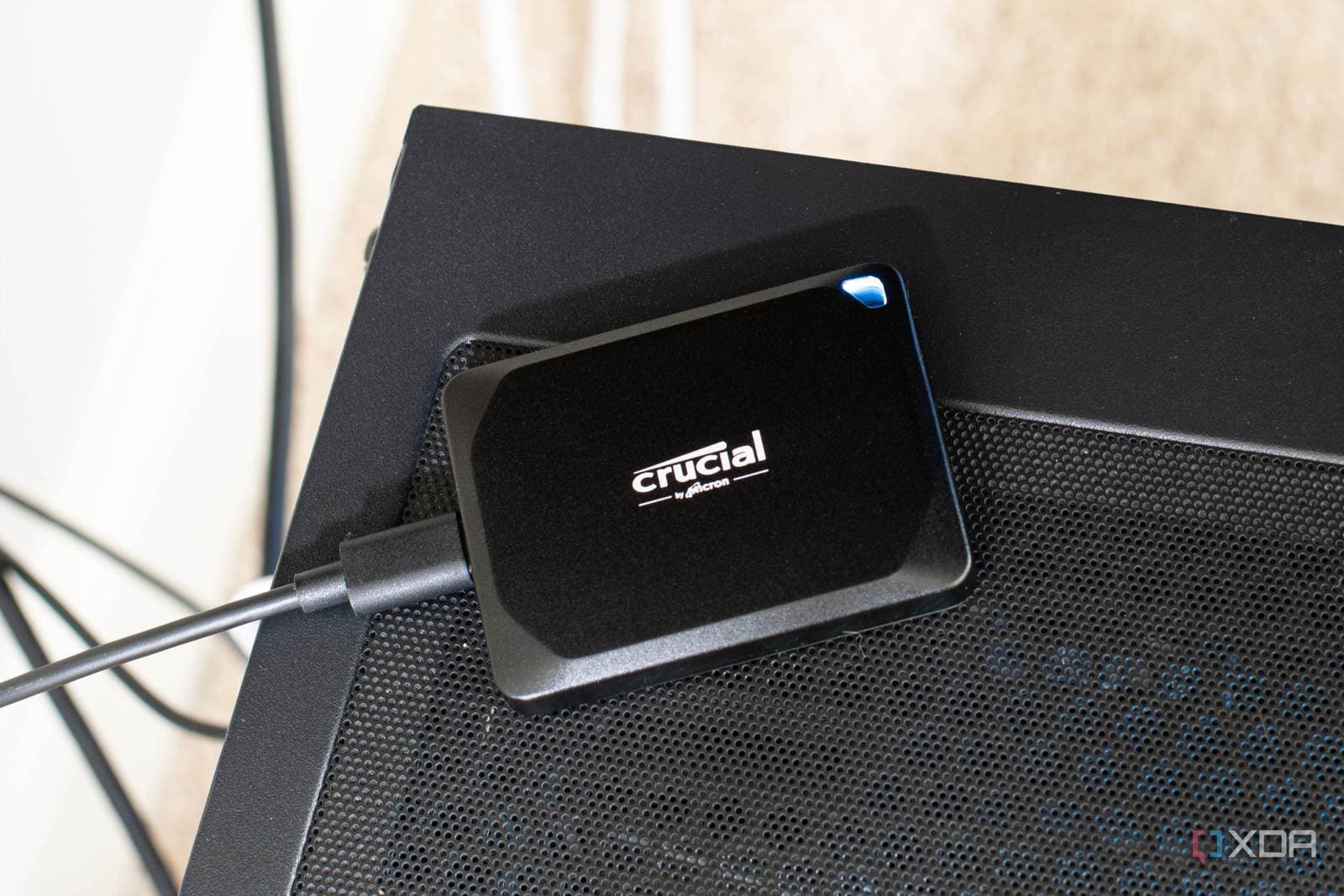
Your pricey external SSD might not be delivering its full potential speed, and fixing it won’t cost you a penny — you just need the right cable. A report from XDA Developers highlights that using the wrong USB-C cable is one of the most common yet overlooked reasons why external drives don’t perform well.
Why Your Cable Matters More Than You Think
Let’s break it down: not all USB-C cables are the same. Whether you hold a cheap $5 charging cable or a high-end data cable, the connectors look identical. But inside, they’re vastly different. USB-C refers to the shape of the connector, not the speed it can handle — think of it like a power outlet. The outlet looks the same whether it’s powering a light bulb or running an entire workshop.
Modern external SSDs rely on USB 3.2 Gen 2 or Thunderbolt technology (a high-speed transfer protocol developed by Intel, also used by Apple in its Macs) to transfer files at speeds of 1,000 megabytes per second or faster. If you connect that drive using a cable rated for USB 2.0, you’ll limit your transfer speed to about 60 megabytes per second. That’s roughly 16 times slower than what the drive can handle.
This means a 10GB video file that should take about 10 seconds could drag on for nearly three minutes due to the cable you picked up from your desk.
The Cable Confusion Problem
Part of the problem is that USB-C cables are everywhere these days. Most of them come with devices as charging cables, not data cables. Your phone charger, laptop charger, and earbuds case — they all use the same connector. However, those cables are designed primarily for power, not necessarily for high-speed data transfer.
To achieve the best performance from an external SSD, you need a cable that supports the correct USB standard. Here are the labels to look for:
- USB 3.2 Gen 2 — supports up to 10 gigabits per second (Gbps)
- USB 3.2 Gen 2×2 — supports up to 20 Gbps
- Thunderbolt 3 or 4 — supports up to 40 Gbps
If your cable just says “USB-C” without a generation label, assume it’s slower until you can prove otherwise.
How To Check What You Have
The easiest solution is to use the cable that came with your external SSD. Manufacturers usually include a cable rated for the maximum speed the drive can support. If you’ve lost it or switched it out, check the packaging or look for a small label on the cable itself — though many cheaper cables skip this entirely.
If you’re on a Windows PC, plug in your drive and check the Device Manager (the system tool that shows connected hardware) to see what USB speed is reported. For Mac users, go to About This Mac and check System Information under the USB section. If the reported speed is lower than what your drive can handle, the cable is likely the issue.
| USB-C Cable Speed Comparison | ||
|---|---|---|
| Cable Type | Max Speed | 10GB File Transfer Time |
| USB 2.0 (basic charging cable) | ~60 MB/s | ~2 min 46 sec |
| USB 3.2 Gen 1 | ~500 MB/s | ~20 sec |
| USB 3.2 Gen 2 | ~1,000 MB/s | ~10 sec |
| Thunderbolt 4 | ~3,000 MB/s | ~3 sec |
What This Means
If you rely on an external SSD for tasks like backing up your computer, editing videos, or moving large photo libraries, you could be wasting minutes or even hours of productivity each week without realizing it. The fix is simple: buy a cable that matches your drive’s spec, typically costing between $10 and $20. And label it so you don’t mix it up with your charging cables again.
This is especially important if you’re editing video directly from an external drive, a common scenario for photographers and video editors. Slow cable speeds can lead to dropped frames or stuttering playback. This often appears to be a problem with your computer or drive, when in fact, the cable is the culprit.
For most users who just store files they don’t access often, a slower cable isn’t a disaster. But if you’re investing hundreds of dollars in a fast SSD and using a $5 phone charger cable, you’re wasting a lot of your purchase potential.
Community Reactions
“This burned me so bad. I bought a Samsung T7 and was wondering why it was so slow. Turns out I was using a random cable I found in a drawer. Swapped it for the included one and it was night and day.”
“The fact that they all look the same should be illegal at this point. I have like 15 USB-C cables and I genuinely cannot tell them apart. I just put a piece of tape on the good ones now.”
What To Watch
The USB Implementers Forum, which sets USB standards, has been advocating for better cable labeling requirements. However, enforcement is inconsistent among manufacturers. USB4, the latest generation supporting up to 40 Gbps, will start appearing in more devices in 2025 and 2026. This may worsen the labeling issue since fewer people know what USB4 cables look like compared to Thunderbolt.
Watch to see if major retailers begin enforcing clearer labeling on cable packaging. Amazon and Best Buy have faced pressure to highlight speed ratings more prominently in product listings. For now, your safest bet is to check your drive’s documentation for the recommended cable spec, and then buy that spec specifically instead of grabbing any USB-C cable nearby.

Maya Torres
Maya Torres is the Consumer Tech Editor at Explosion.com with 7 years covering product launches for major technology publications. She has reviewed over 300 devices across smartphones, laptops, wearables, and smart home products. Maya specializes in translating spec sheets into real-world buying advice and attends CES, MWC, and Apple keynotes as press. Her reviews focus on helping readers decide what to buy, not just what specs look good on paper.