Android Auto lag can be frustrating. That annoying delay between tapping your screen and getting a response often has three easy fixes: upgrading your USB cable, keeping your software up to date, and freeing up your phone’s RAM (the short-term memory that helps run apps).
Why Android Auto Gets Sluggish
Android Auto streams your phone’s interface to your car’s display over a USB connection. It’s like casting your phone to a TV, but the “TV” is in your dashboard while you’re driving at 60 mph. Since everything passes through that cable and your phone’s processor, any weak spot can cause lag, stuttering, or apps that take ages to load.
The good news? Most common causes of lag can be fixed in under 10 minutes and won’t break the bank.
Fix 1: Swap Out Your USB Cable
This fix surprises many people, but it can make a huge difference. Not all USB cables are the same. The cheap cable that came with your phone charger might only handle power, not fast data transfer. Android Auto needs a cable capable of supporting quick data transfer, ideally USB 2.0 or higher with the right data specs.
XDA Developers points out that using a higher-quality USB cable is one of the best ways to improve Android Auto’s performance. A cable that can’t keep up creates a bottleneck, just like a garden hose can’t fill a pool as quickly as a fire hose.
Look for a cable specifically labeled as a “data cable” or “charging and data” cable, preferably from a well-known brand. You don’t need to spend a lot. A good-quality braided USB-A to USB-C or USB-C to USB-C cable in the $10 to $15 range usually works just fine.
Fix 2: Update Your Phone and the Android Auto App
Running outdated software is a major cause of performance issues. Google frequently releases updates for Android Auto, which include bug fixes, performance boosts, and improved compatibility with car systems. If you haven’t updated in a while, you might be using a version with known lag issues that have already been resolved.
To check for updates, open the Google Play Store, search for Android Auto, and tap “Update” if it’s available. Don’t forget to check your phone’s main system settings for any pending Android OS updates. These updates often include improvements that boost the performance of background processes, like Android Auto.
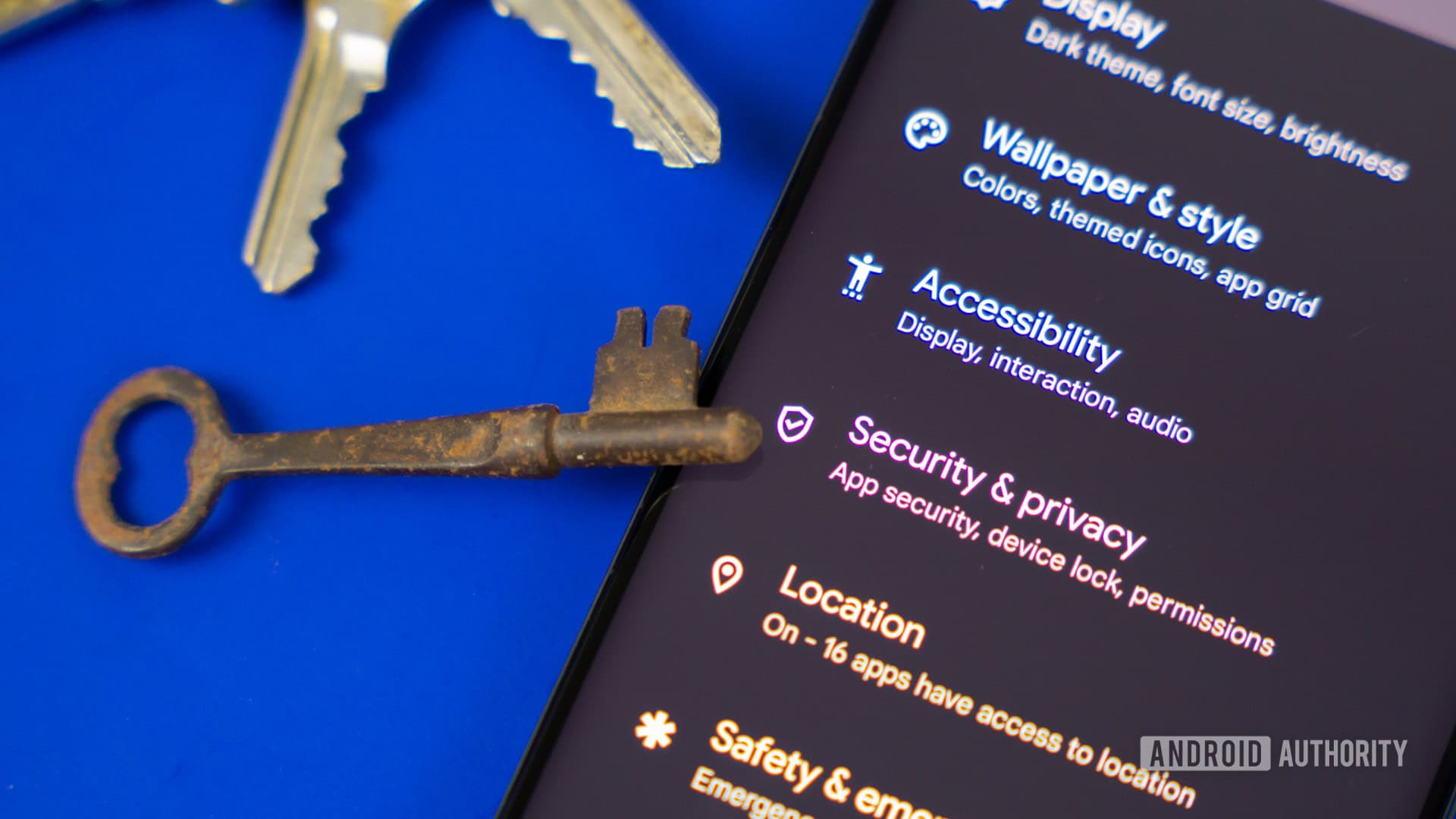
This is especially important now since Google announced 12 new security and performance features coming to Android phones in 2026, according to Android Authority. Staying up to date means you’ll benefit from those enhancements as they come out.
Fix 3: Free Up Your Phone’s RAM Before You Drive
RAM is your phone’s working memory, helping it run multiple apps at once. If your phone’s RAM is nearly full, it starts shuffling apps in and out of memory, causing slowdowns across the board, including with Android Auto.
Before a long drive, close any apps you aren’t using. On most Android phones, tap the square or recent-apps button and swipe away anything running in the background. Some devices also have a “memory cleaner” or “RAM booster” option in the settings or notification panel.
Your goal is simple: give Android Auto as much room as possible so it doesn’t have to compete with 15 other apps for resources.
| Fix | Estimated Cost | Time to Complete |
|---|---|---|
| Replace USB cable with data-rated cable | $10–$15 | 2 minutes |
| Update Android Auto app and phone OS | Free | 5–10 minutes |
| Clear background apps and free RAM | Free | Under 1 minute |
What This Means for Everyday Users
If you count on Android Auto for navigation, music, or hands-free calls during your commute, lag can be more than just annoying; it’s a safety concern. A two-second delay when accepting a call or changing a route can be a serious distraction and lead to accidents. These three fixes target the root causes rather than just masking the symptoms.
Trying the cable fix first makes sense before assuming there’s something wrong with your car’s head unit (the built-in screen and computer) or that your phone is outdated. Most of the time, the hardware is fine; they just need a better connection.
This is a great time for Android Auto users. Google recently introduced a full-screen redesign with widget support and YouTube streaming while parked, meaning the app is more versatile than ever. A smooth connection is essential if you want to enjoy those new features.
Community Reactions
“I swapped the $2 cable that came with my phone for a real data cable, and Android Auto went from barely usable to buttery smooth. I can’t believe I waited so long.”
“The RAM tip is underrated. I had like 20 apps open and wondered why everything was stuttering. Cleared them out before getting in the car, and it made a real difference.”
What To Watch
- Google I/O 2025 follow-through: Google’s newly announced Android Auto redesign with widget support is still rolling out to more vehicles and phone models. Keep an eye out for broader compatibility updates through mid-2026.
- Android 2026 security features: Google’s 12 new security features, highlighted by Android Authority, are expected to reach phones throughout 2026. Some may improve how apps like Android Auto manage background processes and permissions.
- USB-C standardization: As more cars come with native USB-C ports instead of USB-A, cable compatibility issues should become less of a hassle. If you’re buying a new car in 2025 or 2026, check what connection standard it uses before purchasing cables.
Sources: XDA Developers: Quick fixes for Android Auto lag | Android Authority: 12 new Android security features in 2026

Daniel Park
Daniel Park covers AI, cloud infrastructure, and enterprise software for Explosion.com. A former software engineer who transitioned to technology journalism 5 years ago, Daniel brings technical depth to his reporting on artificial intelligence, startup funding rounds, and the companies building the future of computing. He breaks down complex AI developments and business strategies into clear, actionable insights for readers who want to understand how technology is reshaping industries.