A sudden black screen on your MacBook can feel like a total disaster, but don’t worry: many common causes are surprisingly easy to troubleshoot and fix on your own, often without visiting a repair shop.
Picture this: you’re in the middle of an important task, your MacBook humming along, and then—poof—the screen goes dark. You might immediately worry that your expensive Apple laptop is toast, but before you start planning to buy a new one, there are several simple steps you can take. Just like how a faster internet port doesn’t guarantee faster speeds if other components aren’t up to par, a black screen doesn’t always mean a major hardware failure. Sometimes, it’s just a communication error or a power glitch that can be fixed with a few clicks and resets, as Engadget reports.
The First Steps: Power and Peripherals
Often, the simplest solution is the right one. Your MacBook’s black screen might stem from a basic power issue or a conflict with an external device.
Check Your Power Source
This might sound obvious, but make sure your MacBook is actually charged and getting power. Plug it into a known working outlet with your charger. If the charging indicator light (on older MagSafe chargers) or the battery icon on newer models doesn’t show up after a few minutes, try a different charger or outlet. Sometimes, the battery could be completely drained, and it takes a moment for the system to respond.
Disconnect External Devices
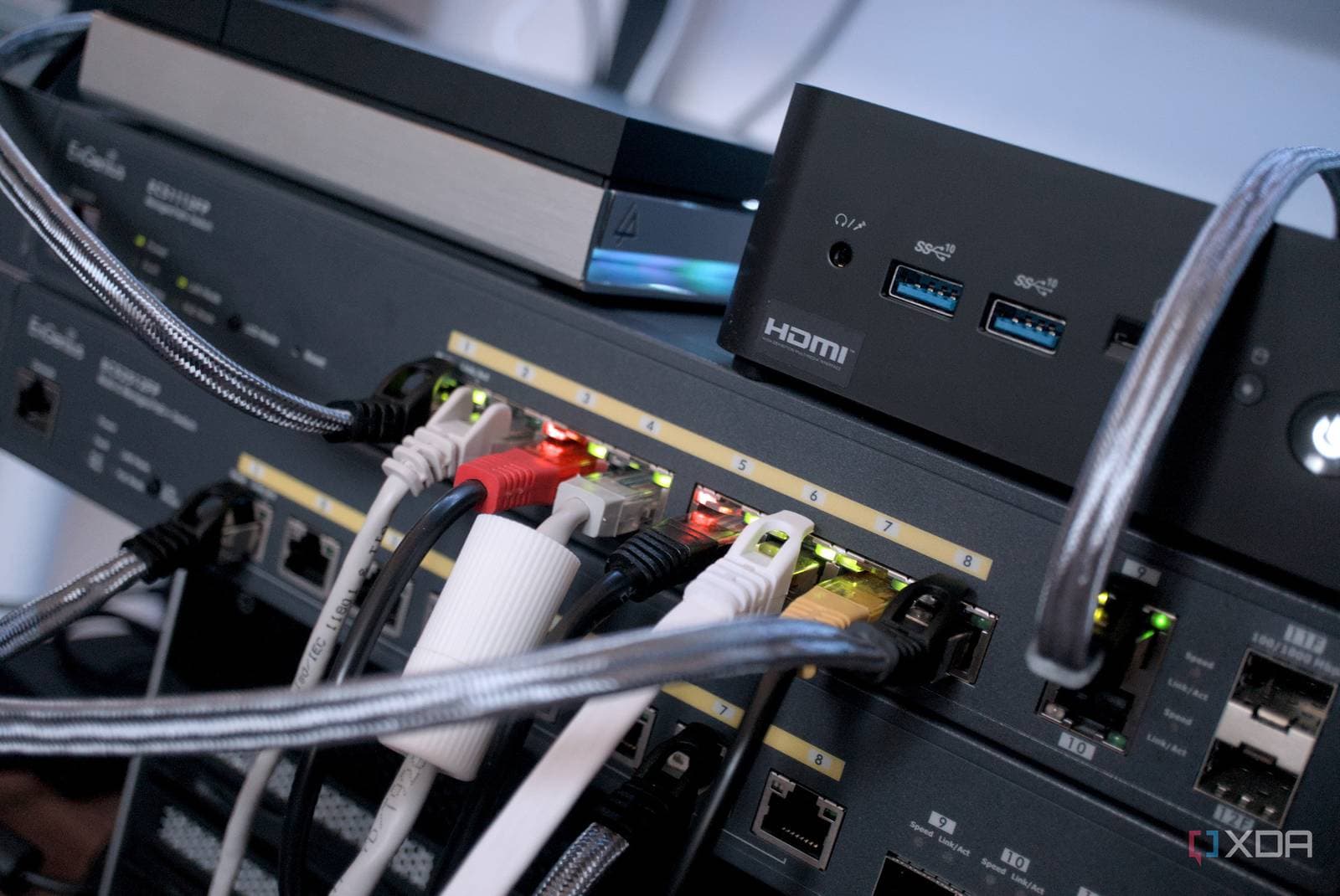
Peripherals like external monitors, USB hubs, or even a faulty mouse can interfere with your MacBook’s display. Unplug everything except the power adapter. If the screen comes back on, reconnect your devices one by one to find the problem. It’s a bit like figuring out why your super-fast 2.5 Gigabit Ethernet (GbE) connection might not be performing well. Often, the bottleneck isn’t the main component; it could be an old cable or an incompatible adapter, as XDA Developers explains for network speeds.
External Display Test
If your MacBook’s screen is still black, try connecting it to an external monitor or TV. If you see an image there, the issue might be with your MacBook’s internal display, not the whole system. This gives you a way to access your files and keep working while you consider repair options for the screen itself.
The Reset Button: Deeper Software Fixes
When basic checks don’t fix the issue, Apple offers built-in software resets that can often resolve display problems by clearing temporary settings or system glitches.
Resetting the SMC
The System Management Controller (SMC) handles low-level functions like power, battery management, fan control, and display backlighting. Resetting it can fix unusual power-related issues, including a black screen. Here’s how to reset the SMC, which varies slightly by MacBook model:
- For MacBooks with T2 Security Chip (most models from 2018 onwards): Shut down your Mac. Press and hold the Control key (on the left side), the Option key (on the left), and the Shift key (on the right) for seven seconds. While holding these three keys, also press and hold the power button. Keep holding all four keys for another seven seconds, then release them. Wait a few seconds, then press the power button to start your Mac.
- For older MacBooks with non-removable batteries: Shut down your Mac. Press and hold the Shift, Control, and Option keys on the left side, along with the power button, for 10 seconds. Release all keys, then press the power button to turn on your Mac.
Resetting NVRAM/PRAM
Non-Volatile Random-Access Memory (NVRAM) or Parameter Random-Access Memory (PRAM) stores specific system settings for quick access, such as display resolution and startup disk selection. Sometimes, corrupted NVRAM/PRAM data can cause display issues. To reset it:
- Shut down your MacBook.
- Turn it on and immediately press and hold these four keys together: Option, Command, P, and R.
- Keep holding the keys for about 20 seconds. Your Mac might restart during this time, and you may hear the startup sound a second time.
- Release the keys. Your Mac should continue starting up normally.
By The Numbers
| MacBook Black Screen Issues | |
|---|---|
| **Prevalence:** | No specific data available on the exact frequency of MacBook black screen issues. |
| **User Reports:** | Anecdotal evidence from forums and support communities suggests it’s a common, often solvable, problem. |
| **Resolution Rate:** | Many cases resolve with basic troubleshooting (power checks, SMC/NVRAM resets). |
What This Means for You
By knowing these troubleshooting steps, you won’t have to panic the next time your MacBook screen goes dark. Instead of jumping to conclusions or rushing to an expensive repair, you can follow a clear, actionable checklist. This lets you potentially fix the issue yourself, saving you time and money, and keeping your digital life running smoothly. It turns a moment of dread into a solvable technical puzzle.
Community Reactions
Users often share their experiences and solutions online:
“Had a black screen scare on my M1 MacBook Air last month. Thought it was toast. Turns out, a simple SMC reset fixed it instantly. Felt like an idiot for panicking, but so relieved it wasn’t a hardware issue!” – u/MacFixer_99 on Reddit
“My screen went black after a macOS update. Tried all the resets, nothing worked. Then I remembered I had an old USB-C hub plugged in. Disconnected it, and BAM, screen came right back. Always check your peripherals!” – TechGuru_22 on YouTube comments
What To Watch
While these troubleshooting steps are generally applicable, Apple keeps refining its macOS operating system and hardware designs. Future macOS updates might introduce new diagnostic tools or slightly change the reset procedures, though core functions like SMC and NVRAM resets are deeply embedded in the system. Always keep your macOS updated to benefit from the latest bug fixes and system stability improvements. This can prevent some of these issues from happening in the first place. If these general steps don’t resolve your issue, check Apple’s official support documentation for the most current advice tailored to your specific MacBook model.

Maya Torres
Maya Torres is the Consumer Tech Editor at Explosion.com with 7 years covering product launches for major technology publications. She has reviewed over 300 devices across smartphones, laptops, wearables, and smart home products. Maya specializes in translating spec sheets into real-world buying advice and attends CES, MWC, and Apple keynotes as press. Her reviews focus on helping readers decide what to buy, not just what specs look good on paper.