
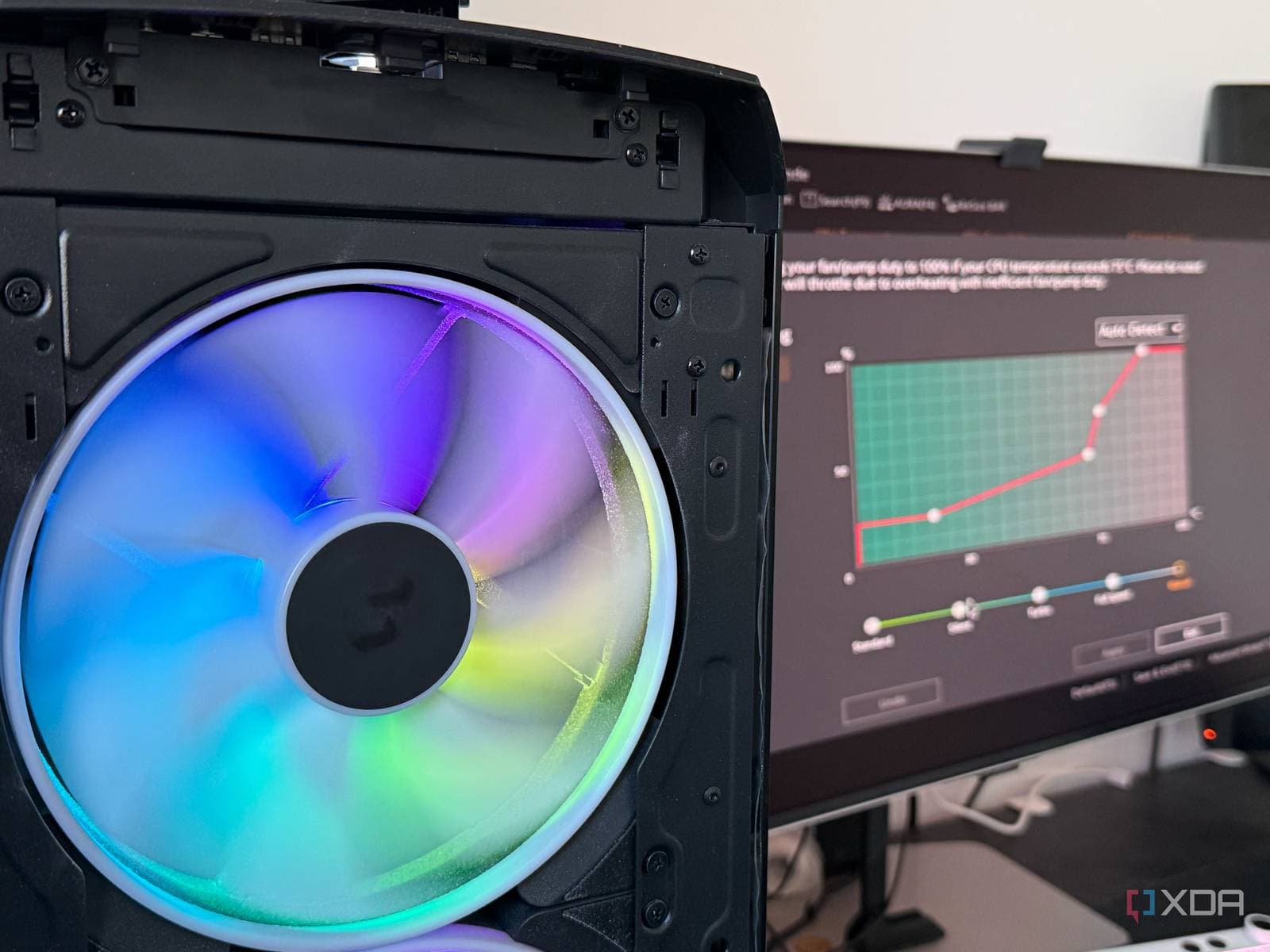
Your motherboard’s built-in fan presets — the “Silent,” “Standard,” and “Performance” settings in its firmware — probably make your PC louder and hotter than necessary. A detailed analysis from XDA Developers reveals that creating a custom fan curve can outperform factory presets. Plus, the process is easier than you might think.
What’s a Fan Curve, and Why Does It Matter?
A fan curve is a graph that indicates how fast your PC’s fans should spin based on the temperature of your components. Imagine it like a car’s automatic transmission: it decides when to shift gears. If calibrated poorly, you might find yourself revving too high at a stoplight or struggling to speed up on the highway. Most motherboard presets are set conservatively. They ramp up fan speeds early and keep them running fast. Manufacturers would rather your PC sound like a hairdryer than risk heat complaints.
The downside? Your machine can be unnecessarily loud during light tasks, like browsing or streaming, without providing better cooling during demanding workloads like gaming or video rendering.
What the Presets Actually Do Wrong
The XDA Developers analysis points out that factory presets aim for universal safety across countless hardware combinations. Your motherboard doesn’t know if you have one case fan or six, whether your CPU cooler is a budget model or a high-end liquid cooler, or how your case airflow is set up. So, it defaults to aggressive fan behavior to be safe.
A custom curve, on the other hand, is tailored to your specific system. This means identifying the temperature range where your CPU and GPU operate during everyday tasks versus heavy workloads. With a custom curve, fans can remain slow and quiet during normal use and only ramp up when temperatures rise. According to the XDA author, this approach resulted in a quieter system under light loads while maintaining similar or better temperatures under stress compared to factory presets.
How to Build Your Own Curve
The most common free tool for this on Windows is Fan Control (a free, open-source application) or your motherboard’s software like ASUS Armoury Crate, MSI Center, or Gigabyte’s System Information Viewer. Most of these applications let you adjust fan speeds on a graph by dragging points to set speed percentages at specific temperature thresholds.
A Basic Starting Framework
A good starting point for most systems looks something like this:
- Below 40°C (104°F): fans at 20-30% speed, nearly silent
- 40°C to 60°C: gradual ramp from 30% to 50%
- 60°C to 75°C: ramp from 50% to 80%
- Above 75°C: 100% speed
The curve should be smooth and gradual, avoiding sudden jumps. Abrupt speed changes lead to that annoying fan surge sound when your PC wakes up or starts a task.
What This Means for Everyday Users
If you work from home and your PC is on a desk next to you all day, fan noise can really affect your work environment. A well-tuned custom curve can lower the noise from a constant low hum to near silence during tasks like email, video calls, and document work — all while still keeping enough cooling headroom for when you need it.
For gamers, the benefits are slightly different. A custom curve can prevent fans from constantly speeding up and slowing down during games with variable loads. This stops the rhythmic whooshing sound that many players find distracting.
There’s also a longevity factor. Fans that spin at high speeds for long periods wear out faster. Running them at lower speeds when full power isn’t needed can extend their lifespan.
| Factor | Detail |
|---|---|
| Tools needed | Free software (Fan Control, or motherboard app) |
| Time to set up | 30–60 minutes for initial tuning |
| Noise reduction (light load) | Significant — fans can drop to near-inaudible speeds |
| Risk level | Low — software changes, easily reversible |
| Works on | Any desktop PC with a configurable motherboard |
Community Reactions
“Did this a year ago and never looked back. The Silent preset on my ASUS board had my fans at 60% during idle. My custom curve keeps them at 25% until I actually start doing something heavy.”
“People sleep on fan curves. Took me an afternoon to tune mine and my office PC went from white noise machine to basically silent. Game changer for video calls.”
One Caveat Worth Knowing
Custom curves require some initial monitoring. After you set yours up, run a stress test (using a free tool like Prime95 or Cinebench to stress your CPU) to ensure temperatures stay safe — generally below 90°C for most modern CPUs — even at maximum fan speeds. If your system runs too hot, even at 100% fan speed, that’s likely a cooling hardware issue that no software curve can fix.
What To Watch
- Fan Control app updates: The open-source Fan Control tool on GitHub gets regular updates with new sensor support. If your motherboard isn’t detected correctly, checking for an updated version usually helps.
- Motherboard firmware updates: ASUS, MSI, and Gigabyte have been improving fan control options in recent BIOS updates. If your current firmware feels limited, a BIOS update might provide more granular curve control without needing third-party software.
- Intel and AMD next-gen platforms: As both companies move towards higher power CPUs in 2025 and 2026, thermal management software is becoming more important. Expect more manufacturers to ship smarter default curves — but a custom one will likely still perform better.

Maya Torres
Maya Torres is the Consumer Tech Editor at Explosion.com with 7 years covering product launches for major technology publications. She has reviewed over 300 devices across smartphones, laptops, wearables, and smart home products. Maya specializes in translating spec sheets into real-world buying advice and attends CES, MWC, and Apple keynotes as press. Her reviews focus on helping readers decide what to buy, not just what specs look good on paper.