Apple has quietly changed where app updates are located in the App Store with the release of iOS 26.4. If you’ve been clicking around trying to find them, you’re not alone. The update moved the pending app updates to a new spot, but there’s a quick way to get back on track without searching through menus.
What Changed in iOS 26.4
In earlier versions of iOS, finding app updates was straightforward: you just opened the App Store, tapped your profile icon in the top right, and scrolled down to see which apps needed updating. With iOS 26.4, that section got a redesign, shifting updates to a different location in the App Store interface.
The profile page received a makeover as part of Apple’s broader iOS 26 redesign, which also introduced the “Liquid Glass” visual style, a term Apple uses for the new translucent, layered look across the operating system. As a result of this redesign, the updates list no longer appears where millions of iPhone users instinctively go.
The Fast Way to Get There
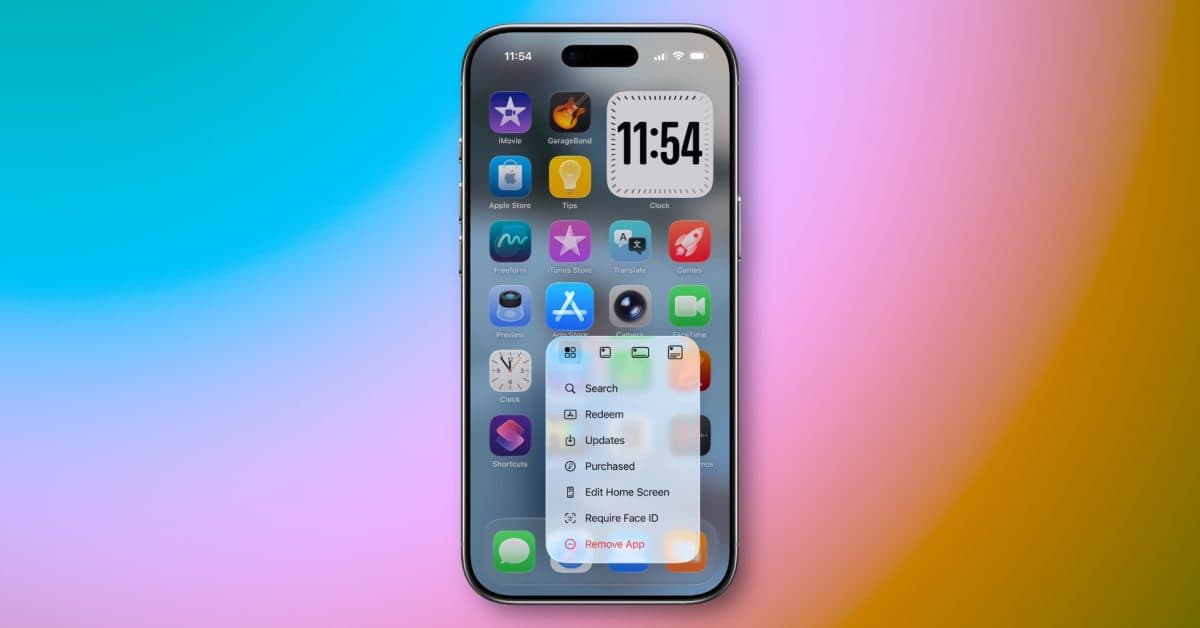
Here’s the quick shortcut: instead of navigating through the App Store’s new menus, long-press (press and hold) the App Store icon on your home screen. A quick-action menu will pop up with direct options, including one for updates. Just one tap takes you there, no scrolling needed.
You can also find updates by opening the App Store and tapping the new dedicated “Updates” tab at the bottom of the navigation bar in iOS 26.4. Apple has moved it from the profile section to a standalone tab, which makes more sense. Once you know it’s there, it’s quicker than the old method.
Why Apple Made the Move
Apple has been steadily reorganizing the App Store as part of the iOS 26 visual and structural overhaul. Previously, the profile page functioned as both an account hub and an update manager. That setup was a bit like checking your email and bank balance on the same screen. Now, separating these functions gives each its own space, though it might feel disorienting for those used to the old layout.
| Method | Steps Required | Works On |
|---|---|---|
| Long-press App Store icon | 2 taps | Home screen or App Library |
| Updates tab in App Store | 2 taps | Inside App Store app |
| Old profile menu method | No longer shows updates | N/A |
What This Means for Everyday Users
If you’re someone who manually checks for app updates instead of letting them install automatically overnight, you’ll notice this change right away. The muscle memory of tapping your profile picture is now a dead end for updates.
The good news? Once you locate the new Updates tab or set up the long-press shortcut, the process is actually faster than before. Apple didn’t remove the feature; they just moved it. Think of it like a grocery store rearranging its aisles. It’s annoying for a bit, but you’ll adjust.
If you’d rather not think about updates at all, you can enable automatic updates in Settings, then App Store, and toggle on “App Updates.” Your phone will take care of everything overnight while charging, so you won’t have to find the Updates tab again. 9to5Mac has a complete visual walkthrough of the new layout if you want step-by-step screenshots.
Community Reactions
“Every update Apple moves something that was perfectly fine where it was. I spent three minutes looking for updates this morning like an idiot.”
“Actually the new Updates tab makes way more sense. The profile page was getting cluttered. People just hate change.”
The Bigger iOS 26 Picture
This small change is part of a much larger redesign of iOS 26 that Apple has been rolling out in stages. The update marks Apple’s most significant visual overhaul since iOS 7 in 2013, affecting nearly every aspect of the operating system. We can expect more small interface changes like this App Store reorganization in future point releases (minor software updates, like 26.1, 26.2, 26.4) as Apple fine-tunes the new design.
iOS 26.4 also included standard bug fixes and security patches along with the App Store changes, according to 9to5Mac’s coverage.
What To Watch
- iOS 26.5 and beyond: Apple is likely to continue refining the iOS 26 interface with additional point releases leading up to the fall. Expect more small UI updates as the company works out the new design.
- WWDC 2026: At Apple’s annual developer conference, we’ll probably get a preview of iOS 27, which will clarify whether the iOS 26 design overhaul is here to stay or still evolving.
- App developer responses: Some app developers are already updating their icons and interfaces to match the iOS 26 Liquid Glass aesthetic. Keep an eye on major apps like Instagram, Spotify, and Google Maps for visual updates in the coming months.

Maya Torres
Maya Torres is the Consumer Tech Editor at Explosion.com with 7 years covering product launches for major technology publications. She has reviewed over 300 devices across smartphones, laptops, wearables, and smart home products. Maya specializes in translating spec sheets into real-world buying advice and attends CES, MWC, and Apple keynotes as press. Her reviews focus on helping readers decide what to buy, not just what specs look good on paper.