
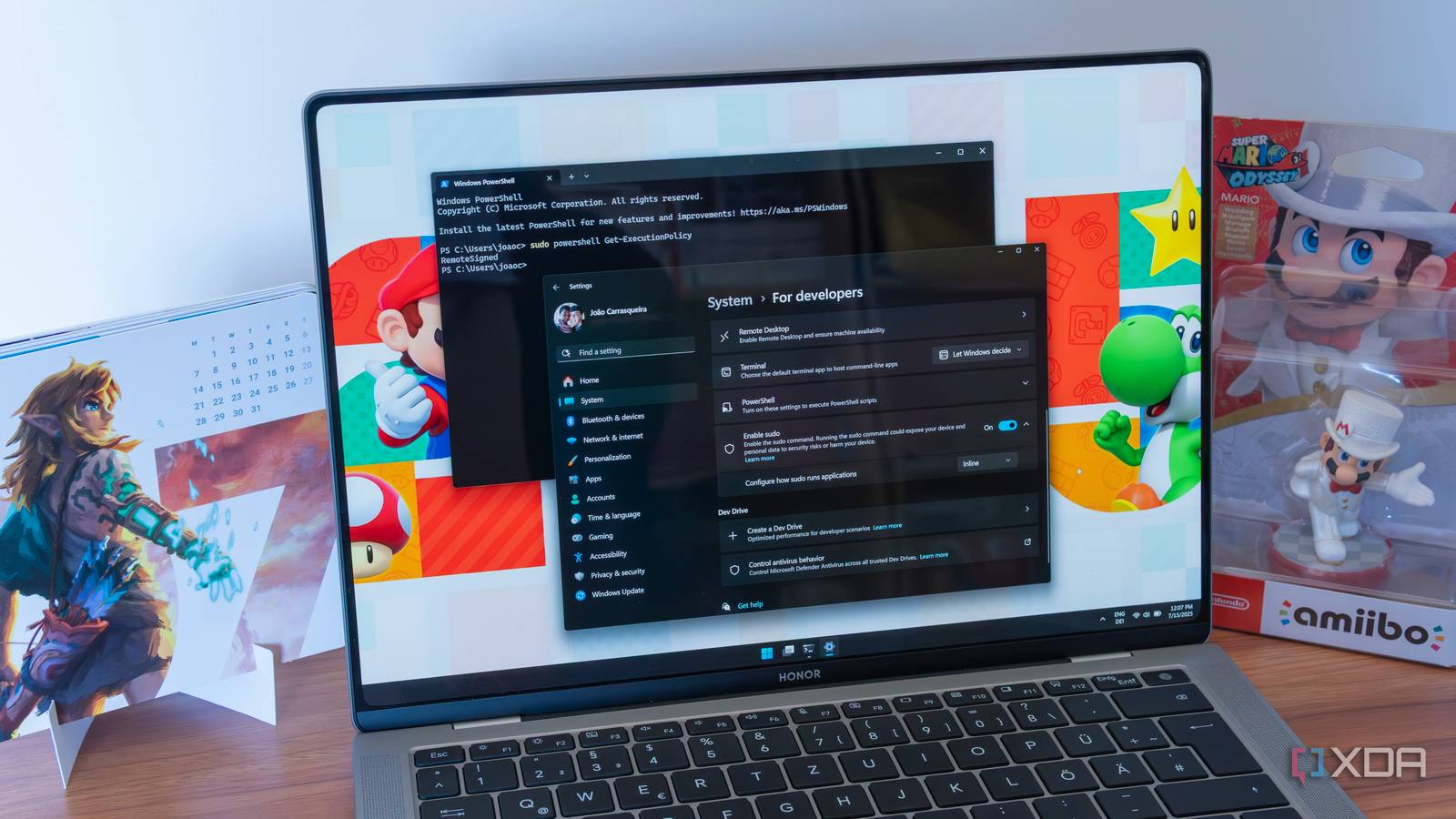
Windows 11 has introduced a highly practical upgrade for power users: a built-in sudo command. This new feature makes the old “Run as Administrator” method in PowerShell feel outdated.
What Is sudo, and Why Does It Matter?
If you haven’t used a Mac or Linux machine, sudo (short for “superuser do”) lets you run a command with elevated privileges (administrator-level permissions) without needing to open a new window or session. Imagine it as showing your ID just for one task rather than checking into an entirely new room.
Previously on Windows, you had to right-click PowerShell or Command Prompt, select “Run as Administrator,” confirm a User Account Control (UAC) prompt, and then re-run your command. That’s four steps before you can actually get to work.
Now, with sudo, you simply add the word before your command. One step, and you’re done.
How Windows 11’s sudo Actually Works
Microsoft integrated sudo into Windows 11 starting with build 26052, part of the Windows Insider Program preview builds. It has since been included in the standard 24H2 (the 2024 major update). To activate it, just go to Settings, search for “sudo,” and toggle it on. After that, it works directly in any open terminal window.
Windows provides three modes for sudo:
- In a new window — opens a separate elevated prompt, similar to the old method.
- With input disabled — runs elevated but blocks keyboard input for security reasons.
- Inline — runs elevated directly in your current terminal window. This mode is the most useful and resembles how sudo functions on Mac and Linux.
The inline mode really changes the game. According to XDA Developers, it eliminates the context-switching that made elevated commands so disruptive in the past. If you hit a permissions wall while in a terminal, just add sudo to the front of your command. No new window, no UAC pop-up interrupting your work.
Why the Old Way Was a Real Problem
The “Run as Administrator” approach wasn’t just inconvenient; it created a separate process environment. Any variables or directory paths you set in your current session wouldn’t carry over. If you were deep into scripting and suddenly needed elevated access, you’d have to start from scratch in the new elevated window.
It’s like being halfway through building a piece of furniture, realizing you need a drill, only to find out you have to restart the entire project in a different room where the drill is kept.
With sudo, that hassle is gone.
Who This Actually Helps
This feature isn’t just for professional developers. Anyone managing their own PC, installing software via the Windows Package Manager (winget), editing system files, or running diagnostic commands will find it useful. If you’ve ever searched for “how to run command prompt as admin” after getting an “access denied” error, this feature is for you.
It’s also a big plus for those who switch between Windows and Mac or Linux. Remembering two different permission systems can be tough, and Microsoft is finally bridging that gap.
| Detail | Info |
|---|---|
| First appeared in | Windows 11 Insider Build 26052 |
| Stable release | Windows 11 24H2 (2024 Update) |
| Available modes | 3 (new window, input disabled, inline) |
| Setup steps required | 1 (toggle in Settings) |
| Old method steps | 4+ (right-click, select, confirm UAC, re-run) |
| Works in | PowerShell, Command Prompt, Windows Terminal |
What This Means
This new feature alleviates one of the most common frustrations users face when doing anything beyond basic tasks. Whether you’re a student using development tools, a small business owner managing your own computer, or someone who likes to stay in control of their PC, sudo modernizes permission management. It feels less like a remnant from Windows Vista.
Moreover, it shows that Microsoft is listening to what developers and tech-savvy users want, rather than just what looks impressive in a feature list. Since the sudo implementation is open-source, the community can review how it works, adding a level of trust that the old UAC system lacked.
What the Community Is Saying
“Finally. I’ve been switching between Mac and Windows for years, and the Run as Admin thing always broke my flow. sudo inline is genuinely useful.”
“People are sleeping on this feature. It’s not just about convenience; it preserves your session environment. That alone makes it worth using.”
What To Watch
- Broader rollout: If you’re using Windows 11 but haven’t received the 24H2 update yet, Microsoft is still rolling it out to specific hardware configurations. Check Settings > Windows Update to see if it’s available for your device.
- Developer tooling integration: Look for popular developer tools like
winget,npm, and various package managers to start including sudo-specific guidance in their Windows documentation as this feature becomes standard. - Security research: Since sudo inline runs elevated commands in an existing session, security researchers will monitor it closely for any privilege escalation (where someone gains more system access than they should). Microsoft’s open-source approach should help identify issues more quickly.
- Windows 12 signals: Features like sudo suggest Microsoft is rethinking the command-line experience. How far this philosophy extends into the next major Windows release will be interesting to watch through 2025 and into 2026.