



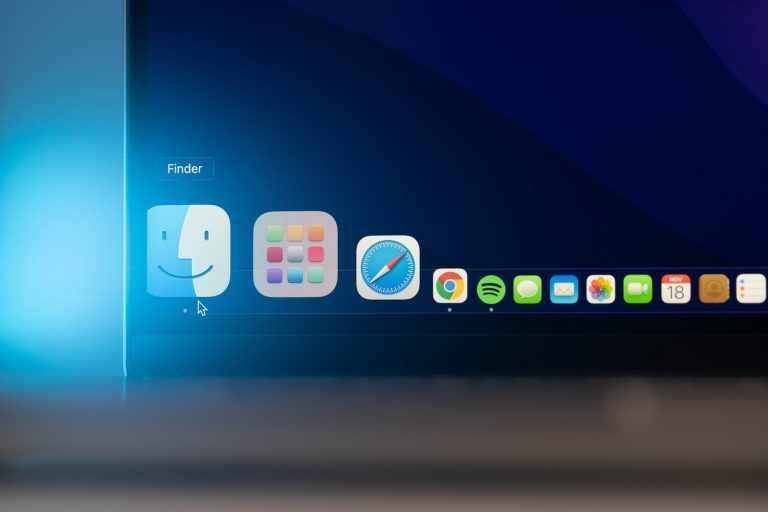


<p>A favorite website in your web browser is akin to a beloved book on your shelf, always ready to serve up the information you need with a simple gesture. So, if Google is your go-to search engine or homepage for web surfing, it makes perfect sense to add it to your favorites for quick and easy access. In the following guide, we&#8217;ll walk you through <strong>how to add Google to favorites on Mac</strong>.</p>
<!-- WP QUADS Content Ad Plugin v. 2.0.99 -->
<div class="quads-location quads-ad135805 " id="quads-ad135805" style="float:none;text-align:center;padding:0px 0 0px 0;" data-lazydelay="3000">

</div>

<h2>Understanding Favorites and Bookmarks</h2>
<p>Before we delve into the step-by-step process, it&#8217;s important to understand the difference between favorites and bookmarks in a web browser. Depending on the browser you use, you might come across both these terms.</p>
<p>While they might seem like different features, favorites and bookmarks are essentially the same thing. The term used depends entirely on the browser. In the case of Safari, the default browser for Mac computers, &#8216;Favorites&#8217; is used to denote the websites or pages you visit frequently or want to quickly access in the future.</p>
<p>Google Chrome Bookmarks is something you come across on other computers and devices.</p>
<!-- WP QUADS Content Ad Plugin v. 2.0.99 -->
<div class="quads-location quads-ad135804 " id="quads-ad135804" style="float:none;text-align:center;padding:0px 0 0px 0;" data-lazydelay="3000">

</div>

<h2>Why Add Google to Favorites?</h2>
<p>Adding Google Chrome Bookmarks to favorites on your Mac can save you precious time in your daily web navigation. Instead of typing in Google&#8217;s URL each time you want to conduct a search, you can simply click on the favorite link and be taken directly to Google&#8217;s homepage. This is especially useful if you use Google frequently for searches, emails, or other Google services.</p>
<h2>How to Add Google to Favorites on Mac</h2>
<p>Here&#8217;s a step-by-step guide on how to add Google to your favorites using the Safari browser on Mac:</p>
<h3>Using the &#8216;Share&#8217; Icon</h3>
<ol>
<li>Launch the Safari browser on your Mac.</li>
<li>Type &#8216;<a href="http://www.google.com" target="_blank" rel="noopener">www.google.com</a>&#8216; into the address bar and press &#8216;Enter&#8217;.</li>
<li>Click the &#8216;Share&#8217; icon located next to the address bar.</li>
<li>Click &#8216;Add Bookmark&#8217; from the drop-down menu.</li>
<li>From the &#8216;Bookmarks&#8217; dropdown menu, select &#8216;Favorites&#8217;.</li>
<li>Finally, click &#8216;Add&#8217; to save Google to your favorites.</li>
</ol>
<h3>Using the &#8216;One-Step Add&#8217; Icon</h3>
<ol>
<li>Visit &#8216;<a href="http://www.google.com" target="_blank" rel="noopener">www.google.com</a>&#8216; in Safari.</li>
<li>Hover your cursor over the left side of the address bar (Smart Search field).</li>
<li>Click and hold the &#8216;Add sign&#8217; (+).</li>
<li>Select &#8216;Favorites&#8217; from the drop-down menu and click &#8216;Save&#8217;.</li>
</ol>
<h3>Dragging the URL</h3>
<ol>
<li>Launch Safari and navigate to &#8216;<a href="http://www.google.com" target="_blank" rel="noopener">www.google.com</a>&#8216;.</li>
<li>Click &#8216;View&#8217; ->; &#8216;Show Sidebar&#8217; ->; Click &#8216;Bookmarks&#8217; ->; &#8216;Favorites&#8217;.</li>
<li>Hover your cursor over the website URL and drag it to your &#8216;Favorites&#8217; section.</li>
</ol>
<h3>Multitasking Window</h3>
<ol>
<li>Open Safari and go to &#8216;<a href="http://www.google.com" target="_blank" rel="noopener">www.google.com</a>&#8216;.</li>
<li>Use the Mac keyboard shortcut, Command + N, to open a new window.</li>
<li>Open both Safari windows in &#8216;Split View&#8217; mode.</li>
<li>Drag the URL from the address bar to the &#8216;Favorites&#8217; section in the second window.</li>
</ol>
<h2>How to Add Google to Favorites on iPhone/iPad</h2>
<p>If you use an iPhone or iPad, you can also add Google to your favorites in Safari. Here&#8217;s how:</p>
<ol>
<li>Launch Safari.</li>
<li>Visit &#8216;<a href="http://www.google.com" target="_blank" rel="noopener">www.google.com</a>&#8216;.</li>
<li>Tap the &#8216;Share&#8217; button at the bottom of the screen.</li>
<li>Select &#8216;Add to Favorites&#8217;.</li>
<li>Tap &#8216;Save&#8217;.</li>
</ol>
<h2>Managing Favorites on Safari</h2>
<p>To manage your favorites, follow these steps:</p>
<!-- WP QUADS Content Ad Plugin v. 2.0.99 -->
<div class="quads-location quads-ad135804 " id="quads-ad135804" style="float:none;text-align:center;padding:0px 0 0px 0;" data-lazydelay="3000">

</div>

<ol>
<li>Open Safari.</li>
<li>Click the &#8216;Bookmarks&#8217; button.</li>
<li>Navigate to the &#8216;Favorites&#8217; folder and click &#8216;Edit&#8217;.</li>
<li>You can now delete, rename, or rearrange your favorites.</li>
</ol>
<h2>Removing Google from Favorites</h2>
<p>If you decide you no longer want Google in your favorites, you can remove it. Here&#8217;s how:</p>
<ol>
<li>Open Safari.</li>
<li>Click the &#8216;Bookmarks&#8217; option in the toolbar.</li>
<li>Select &#8216;Show Favorites&#8217;.</li>
<li>Right-click the Google icon and click &#8216;Delete&#8217;.</li>
</ol>
<h2>Tips for Adding Google to Favorites on Mac</h2>
<ul>
<li>Make sure your Safari browser is up to date. This will ensure you have the most recent features and security updates.</li>
<li>If your Safari browser is not functioning well, force quit the app and restart it.</li>
<li>Clear your browser cache regularly to keep the browser running smoothly.</li>
</ul>
<h2>Wrapping Up</h2>
<p>Adding Google to your favorites on your Mac is a simple yet efficient way to streamline your web browsing experience. With Google just a click away, you can quickly start your web searches, check your emails, or use other Google services. Whether you&#8217;re using a Mac, iPhone, or iPad, adding Google to your favorites in Safari is a breeze with our comprehensive guide. Remember, your favorites are meant to make your web browsing experience more convenient, so customize them to suit your needs and preferences.</p>
<p>With our guide, you can easily add Bookmark from your Google account to your Mac.</p>

<div class="essb_links essb_counter_modern_right essb_displayed_bottom essb_share essb_template_default4-retina essb_1870611416 print-no" id="essb_displayed_bottom_1870611416" data-essb-postid="143829" data-essb-position="bottom" data-essb-button-style="button" data-essb-template="default4-retina" data-essb-counter-pos="right" data-essb-url="https://www.explosion.com/143829/how-to-add-google-to-favorites-on-mac/" data-essb-fullurl="https://www.explosion.com/143829/how-to-add-google-to-favorites-on-mac/" data-essb-instance="1870611416"><ul class="essb_links_list"><li class="essb_item essb_link_facebook nolightbox essb_link_svg_icon"> <a href="https://www.facebook.com/sharer/sharer.php?u=https%3A%2F%2Fwww.explosion.com%2F143829%2Fhow-to-add-google-to-favorites-on-mac%2F&t=Quick+and+Easy%3A+Adding+Google+to+Favorites+on+your+Mac+for+Instant+Access" title="Share on Share" onclick="essb.window(&#39;https://www.facebook.com/sharer/sharer.php?u=https%3A%2F%2Fwww.explosion.com%2F143829%2Fhow-to-add-google-to-favorites-on-mac%2F&t=Quick+and+Easy%3A+Adding+Google+to+Favorites+on+your+Mac+for+Instant+Access&#39;,&#39;facebook&#39;,&#39;1870611416&#39;); return false;" target="_blank" rel="nofollow" class="nolightbox essb-s-bg-facebook essb-s-c-light essb-s-ch-light essb-s-bgh-dark essb-s-bg-network" ><span class="essb_icon essb_icon_facebook"><svg class="essb-svg-icon essb-svg-icon-facebook" aria-hidden="true" role="img" focusable="false" xmlns="http://www.w3.org/2000/svg" width="16" height="16" viewBox="0 0 16 16"><path d="M16 8.049c0-4.446-3.582-8.05-8-8.05C3.58 0-.002 3.603-.002 8.05c0 4.017 2.926 7.347 6.75 7.951v-5.625h-2.03V8.05H6.75V6.275c0-2.017 1.195-3.131 3.022-3.131.876 0 1.791.157 1.791.157v1.98h-1.009c-.993 0-1.303.621-1.303 1.258v1.51h2.218l-.354 2.326H9.25V16c3.824-.604 6.75-3.934 6.75-7.951"></path></svg></span><span class="essb_network_name">Share</span></a></li><li class="essb_item essb_link_twitter nolightbox essb_link_twitter_x essb_link_svg_icon"> <a href="https://x.com/intent/post?text=Quick%20and%20Easy%3A%20Adding%20Google%20to%20Favorites%20on%20your%20Mac%20for%20Instant%20Access&;url=https%3A%2F%2Fwww.explosion.com%2F143829%2Fhow-to-add-google-to-favorites-on-mac%2F" title="Share on Tweet" onclick="essb.window(&#39;https://x.com/intent/post?text=Quick%20and%20Easy%3A%20Adding%20Google%20to%20Favorites%20on%20your%20Mac%20for%20Instant%20Access&;url=https%3A%2F%2Fwww.explosion.com%2F143829%2Fhow-to-add-google-to-favorites-on-mac%2F&#39;,&#39;twitter&#39;,&#39;1870611416&#39;); return false;" target="_blank" rel="nofollow" class="nolightbox essb-s-bg-twitter essb-s-c-light essb-s-ch-light essb-s-bgh-dark essb-s-bg-network" ><span class="essb_icon essb_icon_twitter_x"><svg class="essb-svg-icon essb-svg-icon-twitter_x" aria-hidden="true" role="img" focusable="false" viewBox="0 0 24 24"><path d="M18.244 2.25h3.308l-7.227 8.26 8.502 11.24H16.17l-5.214-6.817L4.99 21.75H1.68l7.73-8.835L1.254 2.25H8.08l4.713 6.231zm-1.161 17.52h1.833L7.084 4.126H5.117z"></path></svg></span><span class="essb_network_name">Tweet</span></a></li><li class="essb_item essb_link_pinterest nolightbox essb_link_svg_icon"> <a href="#" title="Share on Pin It" onclick="essb.pinterest_picker(&#39;1870611416&#39;); return false;" target="_blank" rel="nofollow" class="nolightbox essb-s-bg-pinterest essb-s-c-light essb-s-ch-light essb-s-bgh-dark essb-s-bg-network" ><span class="essb_icon essb_icon_pinterest"><svg class="essb-svg-icon essb-svg-icon-pinterest" aria-hidden="true" role="img" focusable="false" width="32" height="32" viewBox="0 0 32 32" xmlns="http://www.w3.org/2000/svg"><path d="M10.625 12.25c0-1.375 0.313-2.5 1.063-3.438 0.688-0.938 1.563-1.438 2.563-1.438 0.813 0 1.438 0.25 1.875 0.813s0.688 1.25 0.688 2.063c0 0.5-0.125 1.125-0.313 1.813-0.188 0.75-0.375 1.625-0.688 2.563-0.313 1-0.563 1.75-0.688 2.313-0.25 1-0.063 1.875 0.563 2.625 0.625 0.688 1.438 1.063 2.438 1.063 1.75 0 3.188-1 4.313-2.938 1.125-2 1.688-4.375 1.688-7.188 0-2.125-0.688-3.875-2.063-5.25-1.375-1.313-3.313-2-5.813-2-2.813 0-5.063 0.875-6.75 2.688-1.75 1.75-2.625 3.875-2.625 6.375 0 1.5 0.438 2.75 1.25 3.75 0.313 0.313 0.375 0.688 0.313 1.063-0.125 0.313-0.25 0.813-0.375 1.5-0.063 0.25-0.188 0.438-0.375 0.5s-0.375 0.063-0.563 0c-1.313-0.563-2.25-1.438-2.938-2.75s-1-2.813-1-4.5c0-1.125 0.188-2.188 0.563-3.313s0.875-2.188 1.625-3.188c0.75-1.063 1.688-1.938 2.688-2.75 1.063-0.813 2.313-1.438 3.875-1.938 1.5-0.438 3.125-0.688 4.813-0.688 1.813 0 3.438 0.313 4.938 0.938 1.5 0.563 2.813 1.375 3.813 2.375 1.063 1.063 1.813 2.188 2.438 3.5 0.563 1.313 0.875 2.688 0.875 4.063 0 3.75-0.938 6.875-2.875 9.313-1.938 2.5-4.375 3.688-7.375 3.688-1 0-1.938-0.188-2.813-0.688-0.875-0.438-1.5-1-1.875-1.688-0.688 2.938-1.125 4.688-1.313 5.25-0.375 1.438-1.25 3.188-2.688 5.25h-1.313c-0.25-2.563-0.188-4.688 0.188-6.375l2.438-10.313c-0.375-0.813-0.563-1.813-0.563-3.063z"></path></svg></span><span class="essb_network_name">Pin It</span></a></li><li class="essb_item essb_link_mail nolightbox essb_link_svg_icon"> <a href="#" title="Share on Email" onclick="essb_open_mailform(&#39;1870611416&#39;); return false;" target="_blank" rel="nofollow" class="nolightbox essb-s-bg-mail essb-s-c-light essb-s-ch-light essb-s-bgh-dark essb-s-bg-network" ><span class="essb_icon essb_icon_mail"><svg class="essb-svg-icon essb-svg-icon-mail" aria-hidden="true" role="img" focusable="false" width="32" height="32" xmlns="http://www.w3.org/2000/svg" viewBox="0 0 60 60"><polygon points="60,50.234 60,9.944 39.482,30.536 " /><polygon points="0,9.941 0,50.234 20.519,30.535 " /><path d="M1.387,8.5l21.002,21.08c0.121,0.051,0.471,0.415,0.517,0.519l5.941,5.963c0.635,0.591,1.672,0.59,2.333-0.025l5.911-5.933c0.046-0.105,0.4-0.473,0.522-0.524L58.615,8.5H1.387z" /><path d="M38.07,31.954l-5.5,5.52c-0.73,0.68-1.657,1.019-2.58,1.019c-0.914,0-1.823-0.332-2.533-0.993l-5.526-5.546L1.569,51.5h56.862L38.07,31.954z" /></svg></span><span class="essb_network_name">Email</span></a></li></ul></div>



0 Comments