



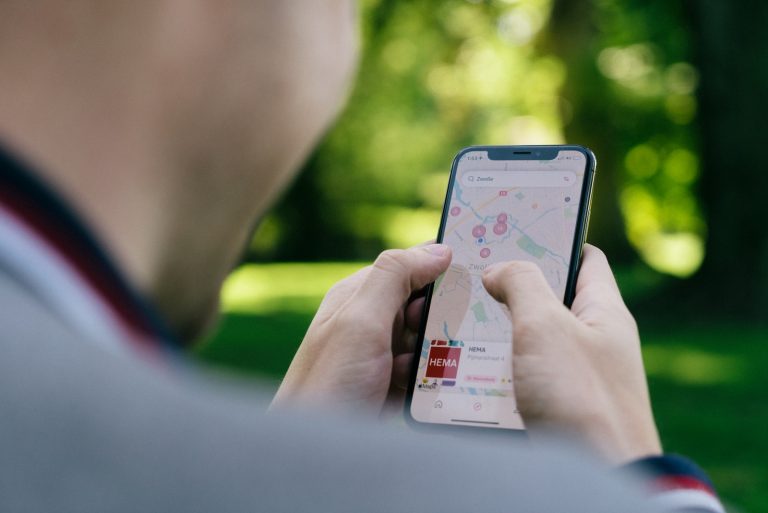


<p>Apple&#8217;s AirTag has revolutionized the way we keep track of our possessions. However, one question that frequently arises is, &#8220;how to add AirTag to second phone?&#8221; This article will provide a detailed step-by-step guide on how to accomplish this.</p>
<!-- WP QUADS Content Ad Plugin v. 2.0.99 -->
<div class="quads-location quads-ad135805 " id="quads-ad135805" style="float:none;text-align:center;padding:0px 0 0px 0;" data-lazydelay="3000">

</div>

<h2>What Is AirTag?</h2>
<p>Before we delve into the process of adding an Apple AirTag to a second phone, it&#8217;s essential to understand what AirTag is. AirTag is a small, coin-shaped device designed by Apple to help users keep track of their belongings using the Find My network.</p>
<p>AirTag is an excellent tool for tracking items like keys, wallets, or bags. However, its capabilities extend beyond just finding misplaced items. It can also help you locate your devices when they&#8217;re out of Bluetooth range, thanks to the vast Find My network that spans millions of Apple devices worldwide.</p>
<h2>Is It Possible to Share an AirTag?</h2>
<p>One of the unique attributes of the AirTag is that it can only be paired with one Apple ID at a time. This means that it can&#8217;t be shared between multiple devices that use different Apple IDs. However, Apple has made it possible to transfer an AirTag from one device to another. This feature comes in handy when you want to gift or resell your AirTag.</p>
<!-- WP QUADS Content Ad Plugin v. 2.0.99 -->
<div class="quads-location quads-ad135804 " id="quads-ad135804" style="float:none;text-align:center;padding:0px 0 0px 0;" data-lazydelay="3000">

</div>

<h2>Transferring an AirTag to a Second Phone</h2>
<p>When you want to know how to add AirTag to a second phone, the first step is to remove the AirTag from your Find My list. This step is crucial as it disables the Find My Lock that ties the AirTag to your Apple ID. Here&#8217;s how to do it:</p>
<ol>
<li>Ensure that the AirTag is within Bluetooth range and connected to your iPhone or iPad.</li>
<li>Open the Find My app and tap on the &#8216;Items&#8217; or &#8216;Devices&#8217; tab.</li>
<li>Select the AirTag that you want to remove and swipe up.</li>
<li>Tap &#8216;Remove Item,&#8217; and then tap &#8216;Remove&#8217; again to confirm.</li>
</ol>
<blockquote><p>Note: An AirTag can only be removed on an iPhone or iPad, not on a Mac.</p></blockquote>
<p>Once the AirTag is removed from your Apple ID, it can be reset manually.</p>
<h2>How to Manually Reset an AirTag</h2>
<p>Resetting an AirTag is a straightforward process. Here&#8217;s how to do it:</p>
<!-- WP QUADS Content Ad Plugin v. 2.0.99 -->
<div class="quads-location quads-ad135804 " id="quads-ad135804" style="float:none;text-align:center;padding:0px 0 0px 0;" data-lazydelay="3000">

</div>

<ol>
<li>Press and hold the steel battery cover of the AirTag and rotate it counter-clockwise.</li>
<li>Remove the cover and battery, then reinstall them.</li>
<li>Press and hold the battery until you hear a sound from the AirTag, indicating a successful connection.</li>
<li>Repeat this process four more times. The fifth sound signals that the AirTag is ready to be paired.</li>
<li>Align the tabs on the cover with the slots on the AirTag, and rotate it to secure it in place.</li>
</ol>
<h2>Pairing an AirTag with a New iPhone</h2>
<p>After resetting the AirTag, the next step in learning how to add AirTag to a second iOS device is to pair it with the new iPhone. Here are the steps:</p>
<ol>
<li>Unlock the iPhone and navigate to the home screen.</li>
<li>Bring the AirTag close to the iPhone.</li>
<li>A pop-up should appear on the iPhone displaying an image of the AirTag. Tap the &#8216;Connect&#8217; button.</li>
<li>Choose a name for the AirTag from the list or enter a custom name and add an emoji.</li>
<li>Tap &#8216;Continue,&#8217; register the AirTag to the new Apple ID, and then tap &#8216;Finish.&#8217;</li>
</ol>
<p>That&#8217;s it! Your used AirTag is now paired with your new iPhone and will appear in the Find My app.</p>
<h2>Can AirTag be Tracked on Multiple Devices?</h2>
<p>While an AirTag can only be paired with one Apple ID at a time, it can be tracked on any device that uses the same Apple ID. This is a practical workaround if you have multiple devices and want to track your AirTag on all of them. Yet, if the devices have a different Apple ID, it will not work.</p>
<p>That being said, you cannot add an Apple AirTag to an Android device.</p>
<!-- WP QUADS Content Ad Plugin v. 2.0.99 -->
<div class="quads-location quads-ad135804 " id="quads-ad135804" style="float:none;text-align:center;padding:0px 0 0px 0;" data-lazydelay="3000">

</div>

<h2>Sharing an AirTag: The Workaround</h2>
<p>While it&#8217;s currently not possible to share an AirTag between different Apple IDs, there&#8217;s a workaround. You can give a friend or family member access to another Apple device that&#8217;s signed in with the same Apple ID. This will allow them to keep track of the AirTag&#8217;s location.</p>
<h2>Looking Ahead: Group Sharing</h2>
<p>With the upcoming release of iOS 17, Apple is planning to introduce a new group sharing feature. This feature will allow up to five individuals to share tracking information, making it easier to keep tabs on your belongings.</p>
<h2>Conclusion</h2>
<p>While the current setup doesn&#8217;t allow an AirTag to be shared between multiple Apple IDs, Apple&#8217;s continual updates and enhancements hold promise for more flexible sharing options in the future. However, for now, the workaround methods provided in this guide on how to add AirTag to second phone should suffice.</p>
<p>Be sure to keep an eye on Apple support forums and websites for new updates and Apple news.</p>
<!-- WP QUADS Content Ad Plugin v. 2.0.99 -->
<div class="quads-location quads-ad135804 " id="quads-ad135804" style="float:none;text-align:center;padding:0px 0 0px 0;" data-lazydelay="3000">

</div>

</p>
<div class="essb_links essb_counter_modern_right essb_displayed_bottom essb_share essb_template_default4-retina essb_1760155063 print-no" id="essb_displayed_bottom_1760155063" data-essb-postid="143823" data-essb-position="bottom" data-essb-button-style="button" data-essb-template="default4-retina" data-essb-counter-pos="right" data-essb-url="https://www.explosion.com/143823/how-to-add-airtag-to-second-phone/" data-essb-fullurl="https://www.explosion.com/143823/how-to-add-airtag-to-second-phone/" data-essb-instance="1760155063"><ul class="essb_links_list"><li class="essb_item essb_link_facebook nolightbox essb_link_svg_icon"> <a href="https://www.facebook.com/sharer/sharer.php?u=https%3A%2F%2Fwww.explosion.com%2F143823%2Fhow-to-add-airtag-to-second-phone%2F&t=Tag+Team%3A+Adding+an+AirTag+to+a+Second+Smartphone+for+Enhanced+Security" title="Share on Share" onclick="essb.window(&#39;https://www.facebook.com/sharer/sharer.php?u=https%3A%2F%2Fwww.explosion.com%2F143823%2Fhow-to-add-airtag-to-second-phone%2F&t=Tag+Team%3A+Adding+an+AirTag+to+a+Second+Smartphone+for+Enhanced+Security&#39;,&#39;facebook&#39;,&#39;1760155063&#39;); return false;" target="_blank" rel="nofollow" class="nolightbox essb-s-bg-facebook essb-s-c-light essb-s-ch-light essb-s-bgh-dark essb-s-bg-network" ><span class="essb_icon essb_icon_facebook"><svg class="essb-svg-icon essb-svg-icon-facebook" aria-hidden="true" role="img" focusable="false" xmlns="http://www.w3.org/2000/svg" width="16" height="16" viewBox="0 0 16 16"><path d="M16 8.049c0-4.446-3.582-8.05-8-8.05C3.58 0-.002 3.603-.002 8.05c0 4.017 2.926 7.347 6.75 7.951v-5.625h-2.03V8.05H6.75V6.275c0-2.017 1.195-3.131 3.022-3.131.876 0 1.791.157 1.791.157v1.98h-1.009c-.993 0-1.303.621-1.303 1.258v1.51h2.218l-.354 2.326H9.25V16c3.824-.604 6.75-3.934 6.75-7.951"></path></svg></span><span class="essb_network_name">Share</span></a></li><li class="essb_item essb_link_twitter nolightbox essb_link_twitter_x essb_link_svg_icon"> <a href="https://x.com/intent/post?text=Tag%20Team%3A%20Adding%20an%20AirTag%20to%20a%20Second%20Smartphone%20for%20Enhanced%20Security&;url=https%3A%2F%2Fwww.explosion.com%2F143823%2Fhow-to-add-airtag-to-second-phone%2F" title="Share on Tweet" onclick="essb.window(&#39;https://x.com/intent/post?text=Tag%20Team%3A%20Adding%20an%20AirTag%20to%20a%20Second%20Smartphone%20for%20Enhanced%20Security&;url=https%3A%2F%2Fwww.explosion.com%2F143823%2Fhow-to-add-airtag-to-second-phone%2F&#39;,&#39;twitter&#39;,&#39;1760155063&#39;); return false;" target="_blank" rel="nofollow" class="nolightbox essb-s-bg-twitter essb-s-c-light essb-s-ch-light essb-s-bgh-dark essb-s-bg-network" ><span class="essb_icon essb_icon_twitter_x"><svg class="essb-svg-icon essb-svg-icon-twitter_x" aria-hidden="true" role="img" focusable="false" viewBox="0 0 24 24"><path d="M18.244 2.25h3.308l-7.227 8.26 8.502 11.24H16.17l-5.214-6.817L4.99 21.75H1.68l7.73-8.835L1.254 2.25H8.08l4.713 6.231zm-1.161 17.52h1.833L7.084 4.126H5.117z"></path></svg></span><span class="essb_network_name">Tweet</span></a></li><li class="essb_item essb_link_pinterest nolightbox essb_link_svg_icon"> <a href="#" title="Share on Pin It" onclick="essb.pinterest_picker(&#39;1760155063&#39;); return false;" target="_blank" rel="nofollow" class="nolightbox essb-s-bg-pinterest essb-s-c-light essb-s-ch-light essb-s-bgh-dark essb-s-bg-network" ><span class="essb_icon essb_icon_pinterest"><svg class="essb-svg-icon essb-svg-icon-pinterest" aria-hidden="true" role="img" focusable="false" width="32" height="32" viewBox="0 0 32 32" xmlns="http://www.w3.org/2000/svg"><path d="M10.625 12.25c0-1.375 0.313-2.5 1.063-3.438 0.688-0.938 1.563-1.438 2.563-1.438 0.813 0 1.438 0.25 1.875 0.813s0.688 1.25 0.688 2.063c0 0.5-0.125 1.125-0.313 1.813-0.188 0.75-0.375 1.625-0.688 2.563-0.313 1-0.563 1.75-0.688 2.313-0.25 1-0.063 1.875 0.563 2.625 0.625 0.688 1.438 1.063 2.438 1.063 1.75 0 3.188-1 4.313-2.938 1.125-2 1.688-4.375 1.688-7.188 0-2.125-0.688-3.875-2.063-5.25-1.375-1.313-3.313-2-5.813-2-2.813 0-5.063 0.875-6.75 2.688-1.75 1.75-2.625 3.875-2.625 6.375 0 1.5 0.438 2.75 1.25 3.75 0.313 0.313 0.375 0.688 0.313 1.063-0.125 0.313-0.25 0.813-0.375 1.5-0.063 0.25-0.188 0.438-0.375 0.5s-0.375 0.063-0.563 0c-1.313-0.563-2.25-1.438-2.938-2.75s-1-2.813-1-4.5c0-1.125 0.188-2.188 0.563-3.313s0.875-2.188 1.625-3.188c0.75-1.063 1.688-1.938 2.688-2.75 1.063-0.813 2.313-1.438 3.875-1.938 1.5-0.438 3.125-0.688 4.813-0.688 1.813 0 3.438 0.313 4.938 0.938 1.5 0.563 2.813 1.375 3.813 2.375 1.063 1.063 1.813 2.188 2.438 3.5 0.563 1.313 0.875 2.688 0.875 4.063 0 3.75-0.938 6.875-2.875 9.313-1.938 2.5-4.375 3.688-7.375 3.688-1 0-1.938-0.188-2.813-0.688-0.875-0.438-1.5-1-1.875-1.688-0.688 2.938-1.125 4.688-1.313 5.25-0.375 1.438-1.25 3.188-2.688 5.25h-1.313c-0.25-2.563-0.188-4.688 0.188-6.375l2.438-10.313c-0.375-0.813-0.563-1.813-0.563-3.063z"></path></svg></span><span class="essb_network_name">Pin It</span></a></li><li class="essb_item essb_link_mail nolightbox essb_link_svg_icon"> <a href="#" title="Share on Email" onclick="essb_open_mailform(&#39;1760155063&#39;); return false;" target="_blank" rel="nofollow" class="nolightbox essb-s-bg-mail essb-s-c-light essb-s-ch-light essb-s-bgh-dark essb-s-bg-network" ><span class="essb_icon essb_icon_mail"><svg class="essb-svg-icon essb-svg-icon-mail" aria-hidden="true" role="img" focusable="false" width="32" height="32" xmlns="http://www.w3.org/2000/svg" viewBox="0 0 60 60"><polygon points="60,50.234 60,9.944 39.482,30.536 " /><polygon points="0,9.941 0,50.234 20.519,30.535 " /><path d="M1.387,8.5l21.002,21.08c0.121,0.051,0.471,0.415,0.517,0.519l5.941,5.963c0.635,0.591,1.672,0.59,2.333-0.025l5.911-5.933c0.046-0.105,0.4-0.473,0.522-0.524L58.615,8.5H1.387z" /><path d="M38.07,31.954l-5.5,5.52c-0.73,0.68-1.657,1.019-2.58,1.019c-0.914,0-1.823-0.332-2.533-0.993l-5.526-5.546L1.569,51.5h56.862L38.07,31.954z" /></svg></span><span class="essb_network_name">Email</span></a></li></ul></div>



0 Comments