



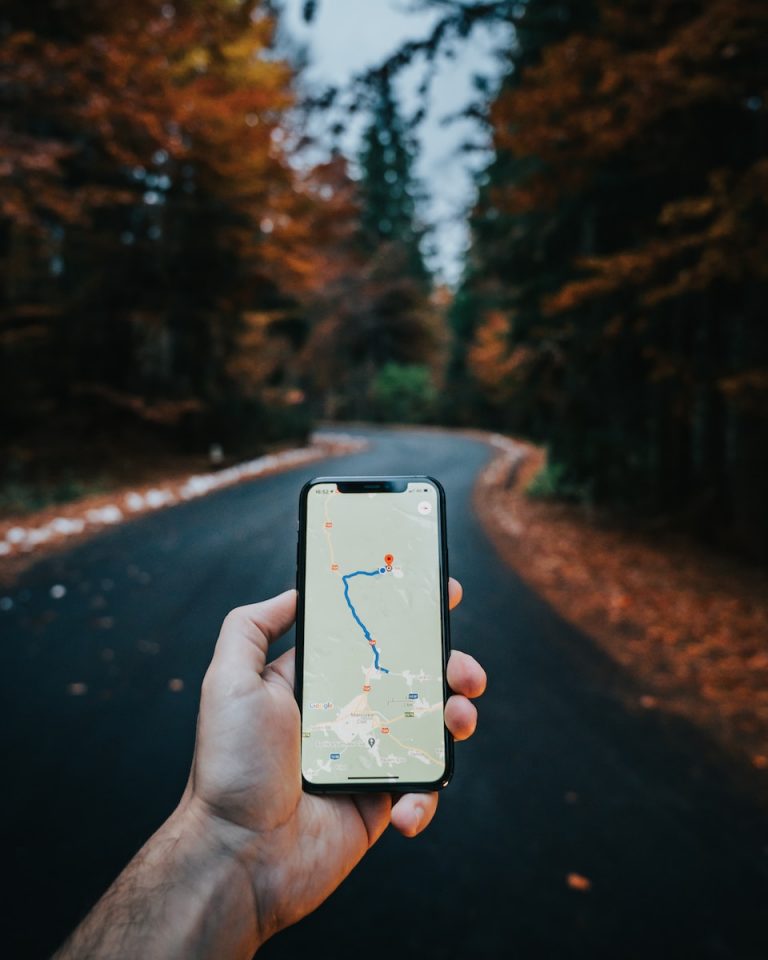


<p>With the advent of advanced technology, gone are the days when we relied on printed MapQuest directions or vague descriptions to find our way or locate someone. Now, with a simple touch on our iPhone, we can share our precise location or find the exact whereabouts of a friend or family member. This comprehensive guide will walk you through the different methods on how to share location on iPhone, ensuring you never lose your way or your loved ones in a crowd.</p>
<!-- WP QUADS Content Ad Plugin v. 2.0.99 -->
<div class="quads-location quads-ad135805 " id="quads-ad135805" style="float:none;text-align:center;padding:0px 0 0px 0;" data-lazydelay="3000">

</div>

<h2>Understanding the Significance of Location Sharing</h2>
<p>Before diving into the details of how to share live location on iPhone, let&#8217;s first understand why this feature is so crucial. There are numerous scenarios where sharing your exact GPS coordinates can be immensely beneficial.</p>
<p>For instance, you might be meeting friends at a vast public place, like a park or a concert, where a specific address doesn&#8217;t exist. By sharing your live location, they can pinpoint your exact spot. Similarly, if you are expecting someone to pick you up, instead of guiding them through landmarks and street numbers, you can simply share your location for quick and hassle-free navigation.</p>
<p>Moreover, for parents, location sharing can be a safety tool to keep tabs on their children&#8217;s whereabouts. By turning on permanent location sharing, you can always know where your kids are. However, it&#8217;s essential to remember that while sharing location can be incredibly useful, it should always be done securely to protect your privacy.</p>
<!-- WP QUADS Content Ad Plugin v. 2.0.99 -->
<div class="quads-location quads-ad135804 " id="quads-ad135804" style="float:none;text-align:center;padding:0px 0 0px 0;" data-lazydelay="3000">

</div>

<h2>Preparing Your iPhone for Location Sharing</h2>
<p>Before learning how to share location on iPhone, you need to enable a few settings. The first step is to activate location services, which allows your iPhone to broadcast location information. Follow these steps to enable location services:</p>
<ol>
<li>Navigate to <strong>Settings</strong> on your iPhone.</li>
<li>Tap on <strong>Privacy</strong> and then <strong>Location Services</strong>.</li>
<li>Toggle the switch to the right to turn it on.</li>
</ol>
<p>Now, if you wish to share your location continuously for a specific period, instead of a one-time location message, you need to enable the &#8220;Share My Location&#8221; feature. Here&#8217;s how:</p>
<ol>
<li>In the <strong>Location Services</strong> menu, tap on <strong>Share My Location</strong>.</li>
<li>Toggle the switch to the right to activate the feature.</li>
</ol>
<h2>Sharing Location via Messages</h2>
<p>The simplest and most direct method of sharing your location on iPhone is through the Messages app. This method is especially convenient when you&#8217;re already in a conversation with the person whom you want to share your location with. Here&#8217;s the step-by-step process:</p>
<ol>
<li>Launch the Messages app on your iPhone.</li>
<li>Open the conversation with the person you want to share your location with.</li>
<li>Tap on the contact&#8217;s name at the top of the conversation to open their information page.</li>
<li>Tap on the <strong>Share My Location</strong> option.</li>
<li>Choose how long you want to share your location: One Hour, Until End of Day, or Indefinitely.</li>
</ol>
<h2>Utilizing the Find My App for Location Sharing</h2>
<p>The Find My app is a powerful tool on your iPhone that can do more than just help you locate your device when lost. It also allows you to share your location with your contacts. To use this feature, you first need to ensure location sharing is enabled in the Find My app. Here&#8217;s how:</p>
<!-- WP QUADS Content Ad Plugin v. 2.0.99 -->
<div class="quads-location quads-ad135804 " id="quads-ad135804" style="float:none;text-align:center;padding:0px 0 0px 0;" data-lazydelay="3000">

</div>

<ol>
<li>Open the Find My app on your iPhone.</li>
<li>Tap on the <strong>People</strong> tab.</li>
<li>Click on the <strong>Add</strong> button.</li>
<li>Select <strong>Share My Location</strong>.</li>
<li>Enter the name or phone number of the contact you wish to share your location with.</li>
<li>Press Send and choose the duration for which you want to share your location.</li>
</ol>
<h2>Sharing Location Through Google Maps</h2>
<p>Google Maps is not just for navigation; it also allows you to share your location directly from the app. The process is simple and straightforward:</p>
<ol>
<li>Open the Google Maps app on your iPhone.</li>
<li>Tap on your profile icon at the top right corner.</li>
<li>Select <strong>Location sharing</strong>.</li>
<li>Press <strong>Share Location</strong> and choose the duration for which you want to share your location.</li>
<li>Select the person with whom you want to share your location.</li>
</ol>
<h2>Utilizing Apple Maps for Location Sharing</h2>
<p>If you prefer using Apple Maps for navigation, you can also use it to send your location details to your contacts. Here&#8217;s how:</p>
<ol>
<li>Open the Apple Maps app.</li>
<li>Tap on your current location to drop a pin.</li>
<li>Swipe up on the panel at the bottom of the screen.</li>
<li>Scroll down and tap on <strong>Share My Location</strong>.</li>
<li>Choose the person you want to share your location with from the suggestions or choose an app like Messages or Mail to send your location.</li>
</ol>
<h2>Sharing Location via Contacts</h2>
<p>Another method to share your location on iPhone is through the Contacts app. Here&#8217;s how you can do it:</p>
<ol>
<li>Launch the Contacts app on your iPhone.</li>
<li>Find and tap on the contact with whom you want to share your location.</li>
<li>Tap on <strong>Share My Location</strong>.</li>
<li>Choose the duration for which you want to share your location.</li>
</ol>
<h2>Using Family Sharing for Location Sharing</h2>
<p>Family Sharing is an excellent feature offered by Apple that allows you to share your iPhone location, alongside other things like apps, books, and subscriptions, with up to six family members. Here&#8217;s how you can set up Family Sharing and use it for location sharing:</p>
<!-- WP QUADS Content Ad Plugin v. 2.0.99 -->
<div class="quads-location quads-ad135804 " id="quads-ad135804" style="float:none;text-align:center;padding:0px 0 0px 0;" data-lazydelay="3000">

</div>

<ol>
<li>Open the Settings app on your iPhone.</li>
<li>Tap on your name at the top.</li>
<li>Tap on <strong>Family Sharing</strong> and then <strong>Set Up Your Family</strong>.</li>
<li>Follow the on-screen instructions to set up family sharing and invite family members.</li>
<li>Once set up, you can enable Location Sharing by going to Settings >; Your Name >; Family Sharing >; Location Sharing. Toggle on <strong>Share My Location</strong>.</li>
</ol>
<p>Remember, sharing your current location can be a powerful tool for navigation and safety, but it should always be done responsibly and securely. Happy sharing!</p>

<div class="essb_links essb_counter_modern_right essb_displayed_bottom essb_share essb_template_default4-retina essb_1404758839 print-no" id="essb_displayed_bottom_1404758839" data-essb-postid="143696" data-essb-position="bottom" data-essb-button-style="button" data-essb-template="default4-retina" data-essb-counter-pos="right" data-essb-url="https://www.explosion.com/143696/how-to-share-location-on-iphone/" data-essb-fullurl="https://www.explosion.com/143696/how-to-share-location-on-iphone/" data-essb-instance="1404758839"><ul class="essb_links_list"><li class="essb_item essb_link_facebook nolightbox essb_link_svg_icon"> <a href="https://www.facebook.com/sharer/sharer.php?u=https%3A%2F%2Fwww.explosion.com%2F143696%2Fhow-to-share-location-on-iphone%2F&t=Mastering+the+Art+of+Location+Sharing+on+iPhone" title="Share on Share" onclick="essb.window(&#39;https://www.facebook.com/sharer/sharer.php?u=https%3A%2F%2Fwww.explosion.com%2F143696%2Fhow-to-share-location-on-iphone%2F&t=Mastering+the+Art+of+Location+Sharing+on+iPhone&#39;,&#39;facebook&#39;,&#39;1404758839&#39;); return false;" target="_blank" rel="nofollow" class="nolightbox essb-s-bg-facebook essb-s-c-light essb-s-ch-light essb-s-bgh-dark essb-s-bg-network" ><span class="essb_icon essb_icon_facebook"><svg class="essb-svg-icon essb-svg-icon-facebook" aria-hidden="true" role="img" focusable="false" xmlns="http://www.w3.org/2000/svg" width="16" height="16" viewBox="0 0 16 16"><path d="M16 8.049c0-4.446-3.582-8.05-8-8.05C3.58 0-.002 3.603-.002 8.05c0 4.017 2.926 7.347 6.75 7.951v-5.625h-2.03V8.05H6.75V6.275c0-2.017 1.195-3.131 3.022-3.131.876 0 1.791.157 1.791.157v1.98h-1.009c-.993 0-1.303.621-1.303 1.258v1.51h2.218l-.354 2.326H9.25V16c3.824-.604 6.75-3.934 6.75-7.951"></path></svg></span><span class="essb_network_name">Share</span></a></li><li class="essb_item essb_link_twitter nolightbox essb_link_twitter_x essb_link_svg_icon"> <a href="https://x.com/intent/post?text=Mastering%20the%20Art%20of%20Location%20Sharing%20on%20iPhone&;url=https%3A%2F%2Fwww.explosion.com%2F143696%2Fhow-to-share-location-on-iphone%2F" title="Share on Tweet" onclick="essb.window(&#39;https://x.com/intent/post?text=Mastering%20the%20Art%20of%20Location%20Sharing%20on%20iPhone&;url=https%3A%2F%2Fwww.explosion.com%2F143696%2Fhow-to-share-location-on-iphone%2F&#39;,&#39;twitter&#39;,&#39;1404758839&#39;); return false;" target="_blank" rel="nofollow" class="nolightbox essb-s-bg-twitter essb-s-c-light essb-s-ch-light essb-s-bgh-dark essb-s-bg-network" ><span class="essb_icon essb_icon_twitter_x"><svg class="essb-svg-icon essb-svg-icon-twitter_x" aria-hidden="true" role="img" focusable="false" viewBox="0 0 24 24"><path d="M18.244 2.25h3.308l-7.227 8.26 8.502 11.24H16.17l-5.214-6.817L4.99 21.75H1.68l7.73-8.835L1.254 2.25H8.08l4.713 6.231zm-1.161 17.52h1.833L7.084 4.126H5.117z"></path></svg></span><span class="essb_network_name">Tweet</span></a></li><li class="essb_item essb_link_pinterest nolightbox essb_link_svg_icon"> <a href="#" title="Share on Pin It" onclick="essb.pinterest_picker(&#39;1404758839&#39;); return false;" target="_blank" rel="nofollow" class="nolightbox essb-s-bg-pinterest essb-s-c-light essb-s-ch-light essb-s-bgh-dark essb-s-bg-network" ><span class="essb_icon essb_icon_pinterest"><svg class="essb-svg-icon essb-svg-icon-pinterest" aria-hidden="true" role="img" focusable="false" width="32" height="32" viewBox="0 0 32 32" xmlns="http://www.w3.org/2000/svg"><path d="M10.625 12.25c0-1.375 0.313-2.5 1.063-3.438 0.688-0.938 1.563-1.438 2.563-1.438 0.813 0 1.438 0.25 1.875 0.813s0.688 1.25 0.688 2.063c0 0.5-0.125 1.125-0.313 1.813-0.188 0.75-0.375 1.625-0.688 2.563-0.313 1-0.563 1.75-0.688 2.313-0.25 1-0.063 1.875 0.563 2.625 0.625 0.688 1.438 1.063 2.438 1.063 1.75 0 3.188-1 4.313-2.938 1.125-2 1.688-4.375 1.688-7.188 0-2.125-0.688-3.875-2.063-5.25-1.375-1.313-3.313-2-5.813-2-2.813 0-5.063 0.875-6.75 2.688-1.75 1.75-2.625 3.875-2.625 6.375 0 1.5 0.438 2.75 1.25 3.75 0.313 0.313 0.375 0.688 0.313 1.063-0.125 0.313-0.25 0.813-0.375 1.5-0.063 0.25-0.188 0.438-0.375 0.5s-0.375 0.063-0.563 0c-1.313-0.563-2.25-1.438-2.938-2.75s-1-2.813-1-4.5c0-1.125 0.188-2.188 0.563-3.313s0.875-2.188 1.625-3.188c0.75-1.063 1.688-1.938 2.688-2.75 1.063-0.813 2.313-1.438 3.875-1.938 1.5-0.438 3.125-0.688 4.813-0.688 1.813 0 3.438 0.313 4.938 0.938 1.5 0.563 2.813 1.375 3.813 2.375 1.063 1.063 1.813 2.188 2.438 3.5 0.563 1.313 0.875 2.688 0.875 4.063 0 3.75-0.938 6.875-2.875 9.313-1.938 2.5-4.375 3.688-7.375 3.688-1 0-1.938-0.188-2.813-0.688-0.875-0.438-1.5-1-1.875-1.688-0.688 2.938-1.125 4.688-1.313 5.25-0.375 1.438-1.25 3.188-2.688 5.25h-1.313c-0.25-2.563-0.188-4.688 0.188-6.375l2.438-10.313c-0.375-0.813-0.563-1.813-0.563-3.063z"></path></svg></span><span class="essb_network_name">Pin It</span></a></li><li class="essb_item essb_link_mail nolightbox essb_link_svg_icon"> <a href="#" title="Share on Email" onclick="essb_open_mailform(&#39;1404758839&#39;); return false;" target="_blank" rel="nofollow" class="nolightbox essb-s-bg-mail essb-s-c-light essb-s-ch-light essb-s-bgh-dark essb-s-bg-network" ><span class="essb_icon essb_icon_mail"><svg class="essb-svg-icon essb-svg-icon-mail" aria-hidden="true" role="img" focusable="false" width="32" height="32" xmlns="http://www.w3.org/2000/svg" viewBox="0 0 60 60"><polygon points="60,50.234 60,9.944 39.482,30.536 " /><polygon points="0,9.941 0,50.234 20.519,30.535 " /><path d="M1.387,8.5l21.002,21.08c0.121,0.051,0.471,0.415,0.517,0.519l5.941,5.963c0.635,0.591,1.672,0.59,2.333-0.025l5.911-5.933c0.046-0.105,0.4-0.473,0.522-0.524L58.615,8.5H1.387z" /><path d="M38.07,31.954l-5.5,5.52c-0.73,0.68-1.657,1.019-2.58,1.019c-0.914,0-1.823-0.332-2.533-0.993l-5.526-5.546L1.569,51.5h56.862L38.07,31.954z" /></svg></span><span class="essb_network_name">Email</span></a></li></ul></div>



0 Comments